


Understanding the Importance of Radio Buttons in Selenium Testing
In web applications, Radio Buttons are one of the most common UI elements used to allow users to make a single selection from multiple options. From choosing a payment method to selecting a gender or a preferred delivery option, radio buttons help define user intent in everyday forms.
For automation testers, handling such elements correctly is crucial to ensure the web application behaves as expected. This is where Selenium WebDriver a powerful open-source tool comes into play.
In this blog post, you’ll learn how to identify, select, and verify this buttons using Selenium WebDriver, complete with practical examples and best practices. Whether you’re just starting with automation or taking an Online Selenium training course, mastering radio button handling is a must for real-world test scenarios.
What Is a Radio Button?
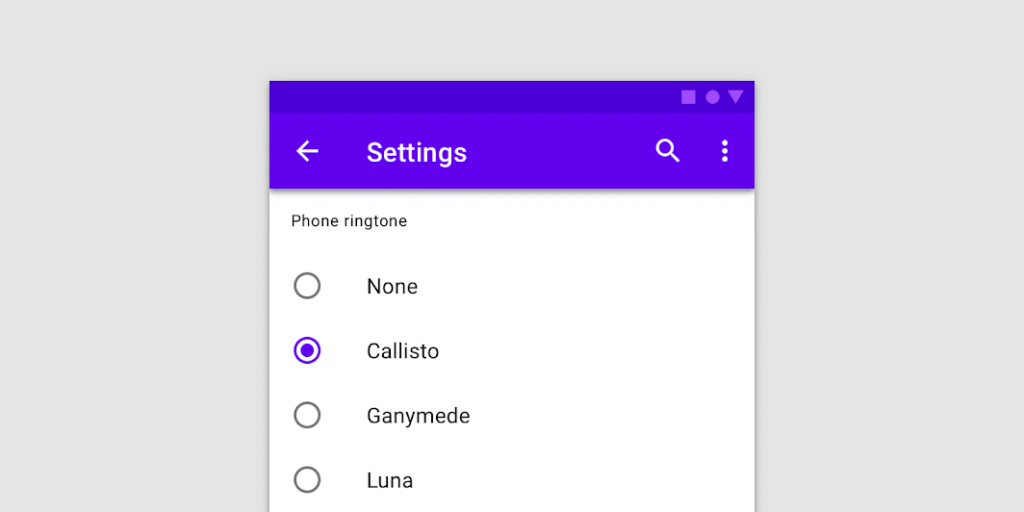
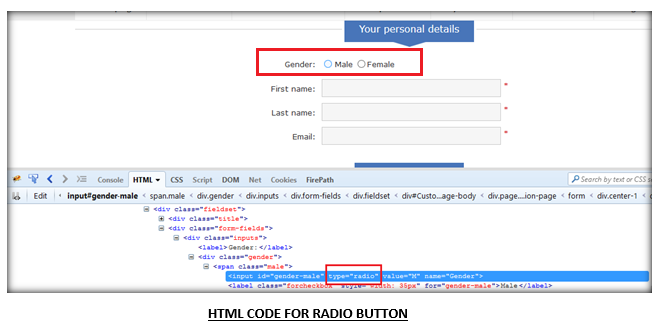
It is a type of HTML input element (<input type="radio">) that allows users to select only one option within a defined group. When one button in the group is selected, others are automatically deselected.
Example:
<form>
  <input type="radio" name="gender" value="male"> Male<br>
  <input type="radio" name="gender" value="female"> Female<br>
  <input type="radio" name="gender" value="other"> Other
</form>
Here, users can select only one gender option at a time. Selenium testers often automate such interactions to verify the behavior of form elements in different conditions.
Why Is Handling Radio Buttons Important in Automation Testing?
Testing radio buttons ensures that:
- The application captures the correct user input.
- Only one option can be selected per group.
- All available options are functional and visible.
- Form submission behaves correctly based on the chosen option.
In real-world automation, thease are part of registration forms, surveys, payment gateways, and preference settings. Incorrect handling during automation can lead to false test results, affecting the overall test reliability.
By learning to automate radio buttons with Selenium WebDriver, you can make your test scripts more accurate and maintainable a skill emphasized in every Selenium online training course.
How to Locate Radio Buttons in Selenium WebDriver
Before interacting with radio buttons, testers must locate them correctly. Selenium provides several locators to identify elements on a web page.
Common Selenium Locators:
- By ID
- By Name
- By XPath
- By CSS Selector
- By Class Name
Let’s explore how these locators are used to identify radio buttons.
Example HTML:
<input type="radio" id="genderMale" name="gender" value="male">
<input type="radio" id="genderFemale" name="gender" value="female">
Using Selenium Locators:
// By ID
WebElement maleRadio = driver.findElement(By.id("genderMale"));

// By Name
WebElement femaleRadio = driver.findElement(By.name("gender"));

// By XPath
WebElement maleOption = driver.findElement(By.xpath("//input[@value='male']"));

// By CSS Selector
WebElement femaleOption = driver.findElement(By.cssSelector("input[value='female']"));
Each locator type serves a purpose, and understanding when to use each comes with practical exposure through Online Selenium training.
Selecting a Radio Button in Selenium WebDriver
Once the element is located, you can select it using the .click() method in Selenium.
Example: Selecting a Radio Button
WebDriver driver = new ChromeDriver();
driver.get("https://example.com/form");

// Locate and select 'Male' radio button
WebElement maleRadio = driver.findElement(By.id("genderMale"));
maleRadio.click();
When executed, this code opens the form, identifies the radio button by ID, and simulates a user click on it.
Verifying Radio Button Selection
Selecting a it is just half the task. Verifying whether it is selected ensures that the automation script performs as expected.
Example: Verify Selection Status
WebElement maleRadio = driver.findElement(By.id("genderMale"));
maleRadio.click();

// Verify if it is selected
boolean isSelected = maleRadio.isSelected();

if (isSelected) {
    System.out.println("Radio button is selected successfully!");
} else {
    System.out.println("Radio button is not selected.");
}
The method .isSelected() returns true if the element is currently selected. This step is crucial in automation testing to validate form interactions programmatically.
Handling Multiple Radio Buttons in a Group
These are usually grouped under the same name attribute. Selenium can iterate through the group and select a specific option based on its value.
Example: Select Specific Radio Button from a Group
List<WebElement> genderOptions = driver.findElements(By.name("gender"));

for (WebElement option : genderOptions) {
    if (option.getAttribute("value").equals("female")) {
        option.click();
        break;
    }
}
This approach is dynamic and scalable, especially for pages with multiple options. You’ll often find such examples demonstrated in Selenium online training labs and projects.
Real-World Example: Automating a Registration Form
Let’s look at a complete example that automates a simple registration form with radio buttons and verifies the selection.
Example Script
import org.openqa.selenium.*;
import org.openqa.selenium.chrome.ChromeDriver;
import java.util.List;

public class RadioButtonTest {
    public static void main(String[] args) {
        WebDriver driver = new ChromeDriver();
        driver.get("https://www.h2kinfosys.com/demo-form");

        // Locate and select the radio button
        List<WebElement> genderOptions = driver.findElements(By.name("gender"));
        for (WebElement option : genderOptions) {
            if (option.getAttribute("value").equals("female")) {
                option.click();
                System.out.println("Female option selected successfully.");
                break;
            }
        }

        // Verify selection
        for (WebElement option : genderOptions) {
            System.out.println(option.getAttribute("value") + " is selected: " + option.isSelected());
        }

        driver.quit();
    }
}
This script demonstrates:
- How to identify elements dynamically.
- How to verify selected options.
- How to integrate Selenium with real-world form scenarios.
Hands-on examples like this form a crucial part of Online Selenium training to bridge the gap between theory and practice.
Common Challenges While Handling Radio Buttons
Even though interacting with radio buttons seems simple, testers often face a few common challenges.
a. Hidden or Disabled Radio Buttons
Some radio buttons may be hidden or disabled. Selenium cannot click on elements not visible on the UI.
Solution:
Use JavaScriptExecutor if interaction is required.
JavascriptExecutor js = (JavascriptExecutor) driver;
js.executeScript("document.getElementById('hiddenRadio').click();");
b. Dynamic IDs
Web applications often generate dynamic IDs for radio buttons.
Solution:
Use robust locators like XPath with contains().
WebElement option = driver.findElement(By.xpath("//input[contains(@id,'gender')]"));
c. Overlapping Elements
Sometimes, page design causes overlapping elements that prevent Selenium from clicking.
Solution:
Use Actions class or scroll the element into view.
Actions actions = new Actions(driver);
actions.moveToElement(element).click().perform();
Understanding these practical challenges is key to becoming an expert automation tester a skill reinforced through structured Selenium online training at H2K Infosys.
Best Practices for Handling Radio Buttons in Selenium
✔ Use Unique Locators
Always use unique IDs or attributes for better element identification.
✔ Add Waits
Use implicit or explicit waits to ensure elements load before interaction.
✔ Validate Selection
Always verify that the correct button is selected before proceeding.
✔ Use Meaningful Assertions
In testing frameworks like TestNG or JUnit, use assertions to validate state.
Assert.assertTrue(maleRadio.isSelected(), "Male radio button not selected");
✔ Keep Scripts Maintainable
Write reusable methods for handling repetitive these button operations.
Radio Buttons and Cross-Browser Testing
Web elements, including buttons, may behave differently across browsers like Chrome, Firefox, and Edge.
Cross-browser testing ensures consistent behavior everywhere.
Best Practice:
Use WebDriverManager and parameterized testing in TestNG to execute tests across multiple browsers.
@Parameters("browser")
@BeforeTest
public void setup(String browser) {
    if(browser.equalsIgnoreCase("chrome")) {
        WebDriverManager.chromedriver().setup();
        driver = new ChromeDriver();
    }
    // add Firefox/Edge setup as needed
}
These skills are emphasized during Online Selenium training sessions to ensure learners understand real-world automation complexity.
Integrating Radio Button Testing in Test Automation Frameworks

In large projects, This interactions are part of modular test frameworks such as:
- Page Object Model (POM)
- Data-Driven Framework
- Keyword-Driven Framework
Example with POM:
public class FormPage {
    WebDriver driver;

    By genderMale = By.id("genderMale");
    By genderFemale = By.id("genderFemale");

    public FormPage(WebDriver driver) {
        this.driver = driver;
    }

    public void selectGender(String gender) {
        if (gender.equalsIgnoreCase("male")) {
            driver.findElement(genderMale).click();
        } else {
            driver.findElement(genderFemale).click();
        }
    }
}
This makes your code clean, reusable, and easy to maintain principles taught in professional Selenium online training programs.
Debugging Tips for Radio Button Failures
When scripts fail to select or verify a radio button:
- Inspect element properties (name, ID, value).
- Add explicit waits before actions.
- Ensure no overlapping modals or pop-ups are blocking the element.
- Use screenshots to visualize test failures.
These debugging strategies are part of practical exercises at H2K Infosys, where Online Selenium training emphasizes real-world troubleshooting.
Conclusion
These are simple yet essential components of web applications. Knowing how to automate and verify them effectively strengthens your foundation in Selenium automation. From identifying elements and performing clicks to verifying states and managing dynamic locators, each step contributes to creating robust and reliable test scripts.
If you want to gain hands-on experience with automation testing, enroll in H2K Infosys’s Online Selenium training today. Learn from industry experts, practice real-world scenarios, and become job-ready with confidence.
Key Takeaways
- This allow single selections within a group.
- Selenium provides flexible locators like ID, Name, XPath, and CSS to handle them.
- Use
.click()for selection and.isSelected()for verification. - Handle hidden or dynamic elements using JavaScriptExecutor or XPath functions.
- Incorporate best practices and cross-browser testing for robust scripts.
Start your automation journey with H2K Infosys’s Selenium online training today and gain hands-on expertise in handling web elements like these Buttons and beyond. Empower your QA career with practical skills and live projects!