
Automation testers preparing for TOSCA Certification often need a clear, practical understanding of Tosca Test Case Execution in real-world enterprise environments. Beyond designing test cases in Tosca Commander, professionals are expected to manage Tosca Test Case Execution using command-line tools, APIs, and CI/CD pipelines as part of modern automation strategies.
This article is part of advanced TOSCA Training and focuses on end-to-end Tosca Test Case Execution techniques. It explains how to execute Tosca test cases using tcshell.exe from the command prompt, how to trigger Tosca Test Case Execution using the Tosca Execution Client APIs, and how to install and configure Jenkins to schedule and run Tosca test cases automatically. These approaches are widely used in continuous integration and DevOps-driven testing frameworks.
We can execute the Tosca test cases from the command prompt and also using API calls with Tosca Execution Client.
How to execute Tosca Test cases from the command prompt?
https://documentation.tricentis.com/tosca/2310/en/content/tosca_commander/tcshell_commands.htm
https://documentation.tricentis.com/tosca/2310/en/content/tosca_commander/tcshell.htm
NOTE: Replace the workspace name, location and the Execution List folder name
Below example is for a single user workspace . If it is a multi user workspace,add a checkout.
On your local drive ,Create Script.tcs or any .tcs file, in this example ,I created Script.tcs under C:\Tosca_Projects\TCShell with below info .
jumptonode “/Execution/ExecutionLists/H2kExe”
task Run
save
Execute below command from command prompt.
“C:\Program Files (x86)\TRICENTIS\Tosca Testsuite\ToscaCommander\tcshell.exe” -workspace “C:\Tosca_Projects\Tosca_Workspaces\JenkinsTest\JenkinsTest.tws” -login “” “” “C:\Tosca_Projects\Script.tcs”
We can also execute this Tosca Command – TC Shell script from Jenkins.
How to Execute Tosca Test Case Execution Using Tosca Execution Client
Open the github url and copy the text from Tosca_execution_client.ps1
https://github.com/Tricentis/ToscaExecutionClient
Login to Tosca Server, click on user administration and click on my account, click on Next to Tokens, Click on Add New . Client ID and Client Secret Code will be generated.
Set-ExecutionPolicy Bypass -Scope Process -Force &
“C:\Tosca_Projects>tosca_execution_client.ps1” -toscaServerUrl “http://localhost/” -events ‘[“H2kExe”]’ -projectName “JenkinsTest” -clientId “DDjZp5pRj0WfwH_bR5KzXQ” -clientSecret “bg-HMwJijkmnFqS7FAyhsAlYQ3IsNdz0yRAF_0VR17EQ”
cd to the folder where tosca_execution_client.ps1 is located.
powershell -ExecutionPolicy Bypass -File “C:\Tosca_Projects/tosca_execution_client.ps1” -toscaServerUrl “http://localhost/” -events ‘[“DexTestEventsForH2kinfosysValidation”]’ -projectName “MayJune2025” -clientId “XE538JM0CEaGNWLECQm0Jw” -clientSecret “MFuYI7a0pEWDcHELTkdySg_wudMOVHMkGeNGOiFK3WTg”
Step 1: Download and Install Jenkins
https://www.jenkins.io/download
Click on Windows, jenkins file will be downloaded, double click on Jenkins file to install
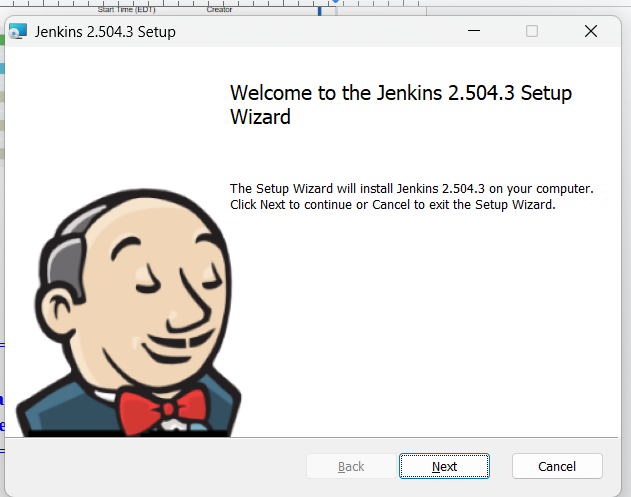
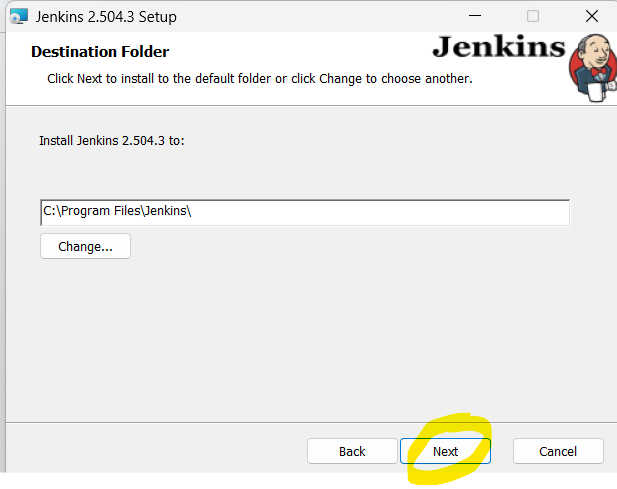
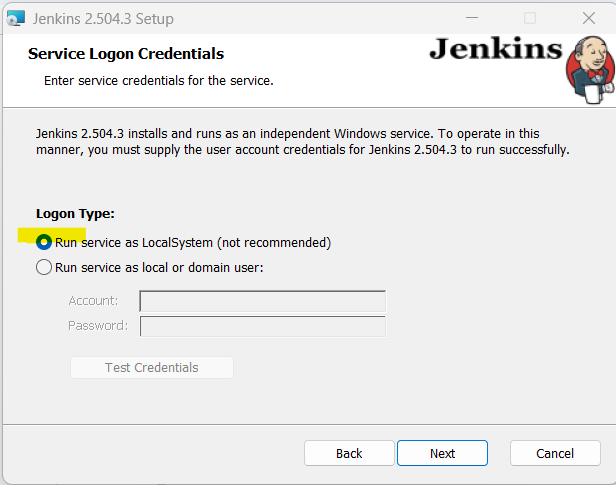
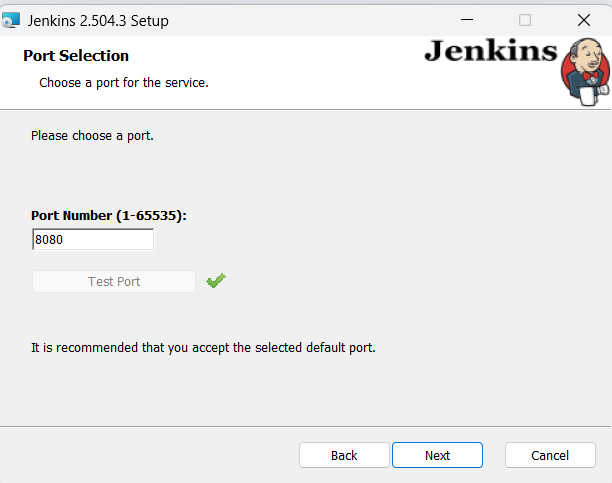
Click on Test port and make sure the default port 8080 is available . If not enter any other port number and click on test port to validate the port number is available.
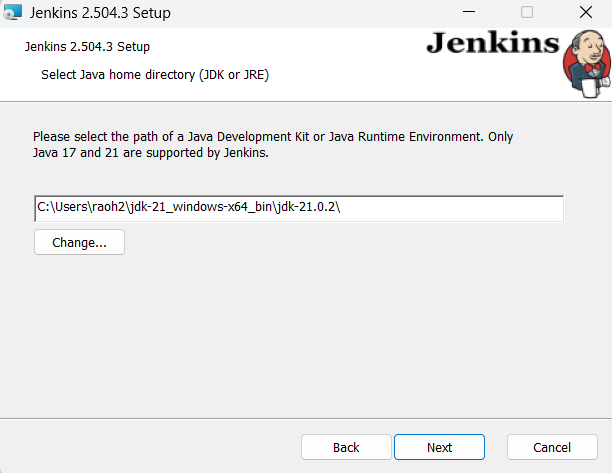
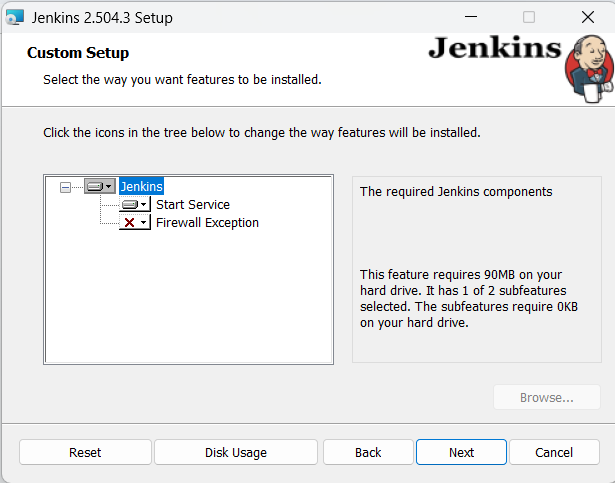
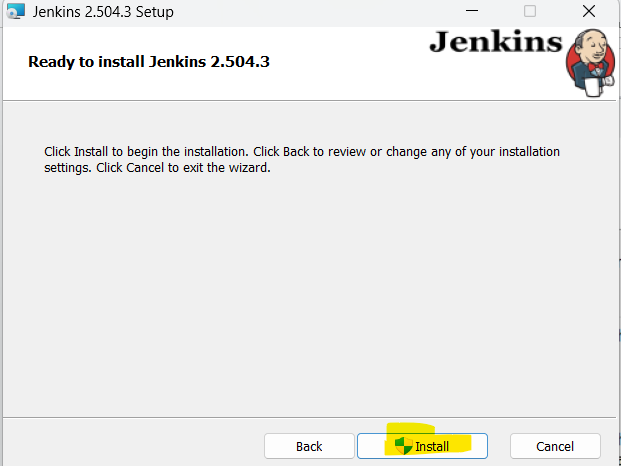
If any popup window prompts for allow the application, click Yes to allow.
Launch browser with localhost:8080

Open the file and copy the password
C:\ProgramData\Jenkins\.jenkins\secrets\initialAdminPassword
Uid: admin and the password is copied from the above file.
After Login , click on suggested plugins

Setup new uid and password as admin / admin ( or any of your choice )
OR continue as admin
I created admin / admin for easy to remember
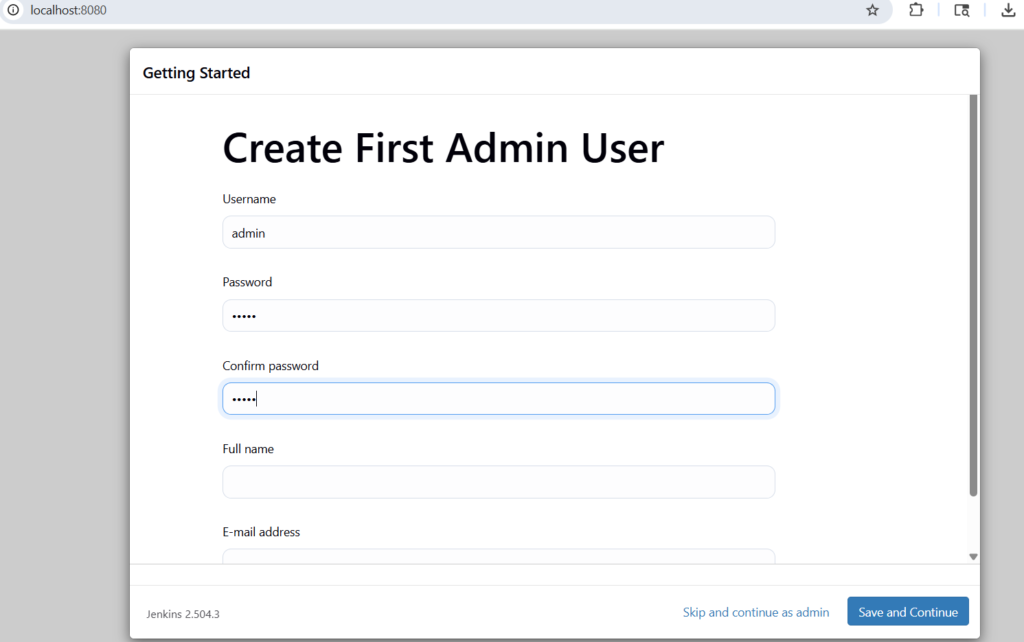
Save and finish
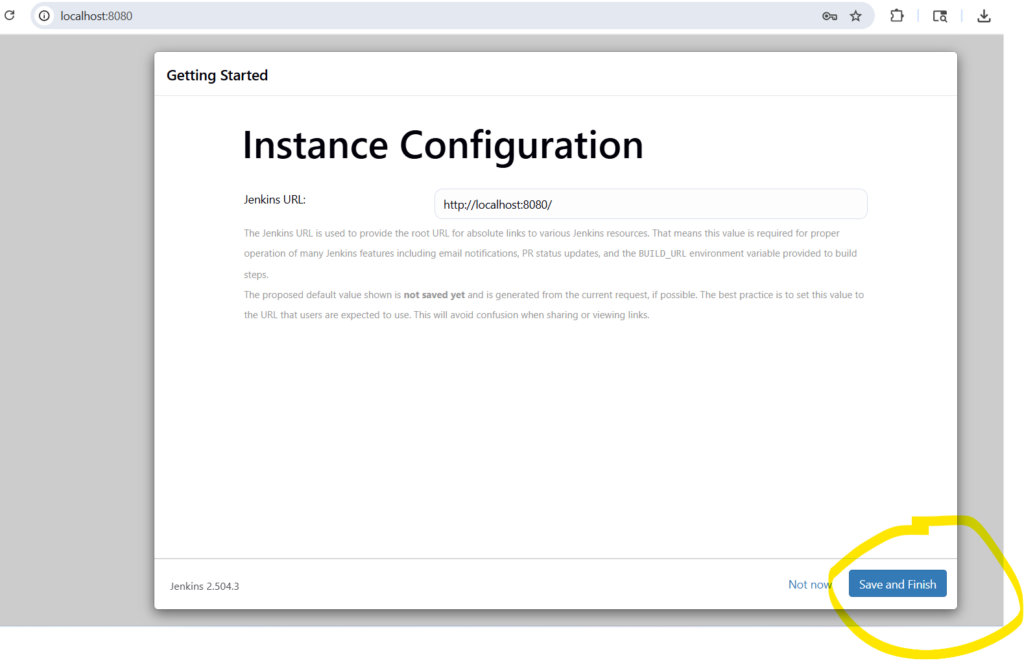
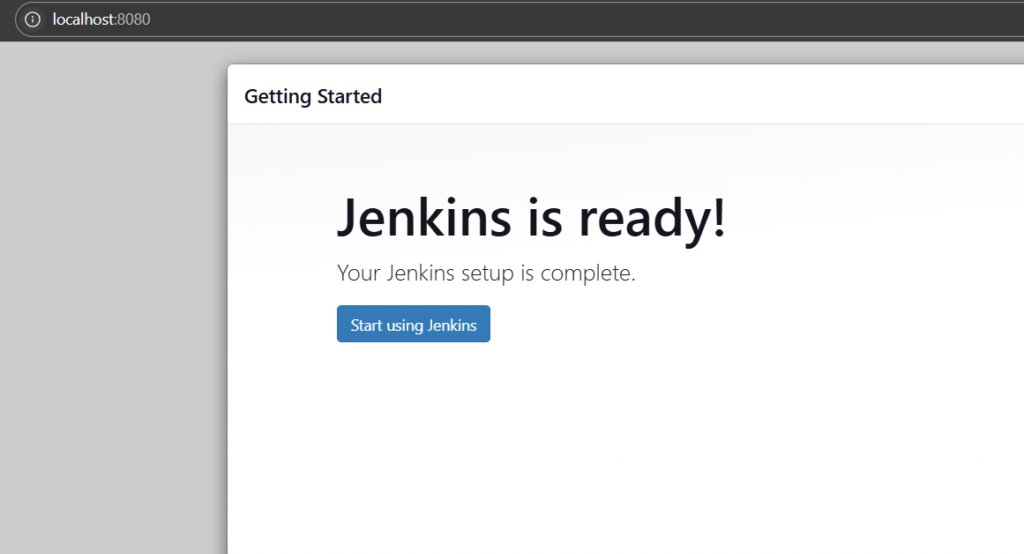
http://localhost:8080/
Click on create new job
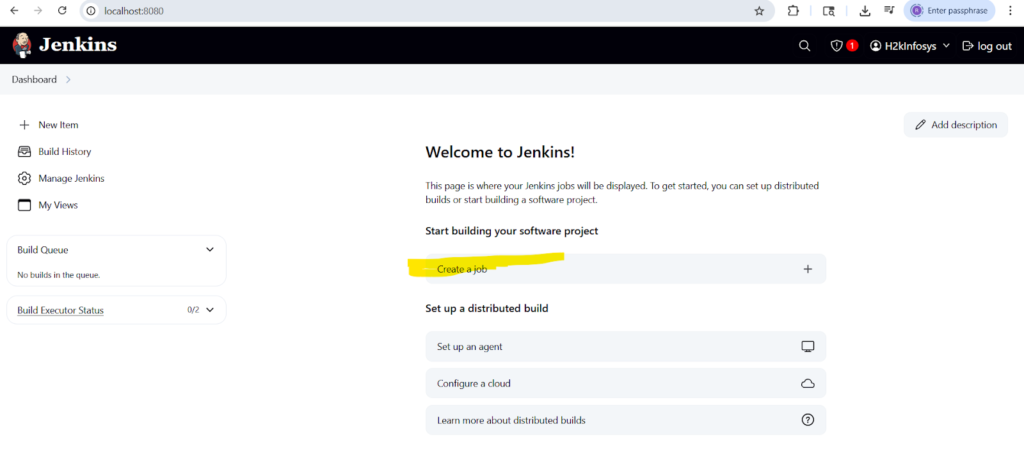
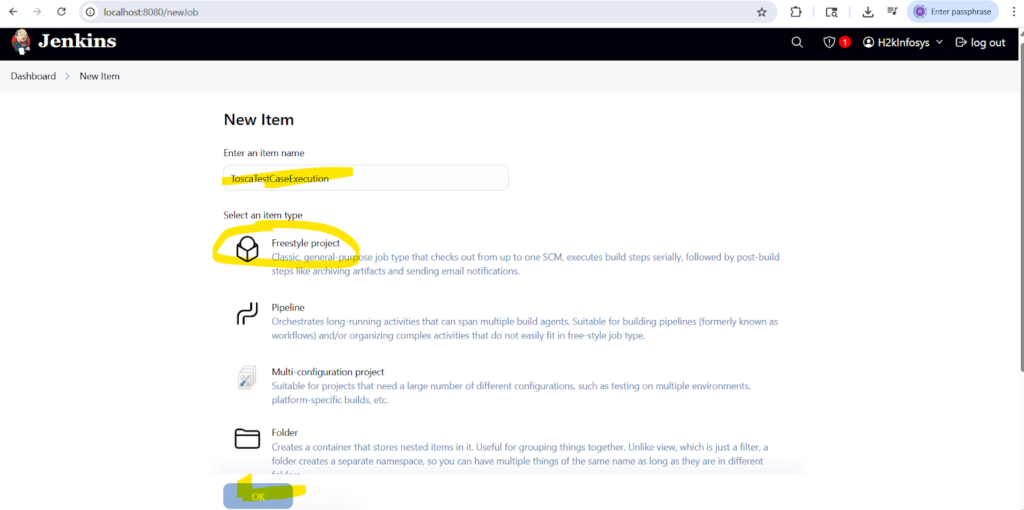
Enter the New Item name ( any name )
I want to execute Tosca Regression Test cases , Name it as ToscaTestCases
Select FreeStyle Project and Click OK
Next screen, scroll down and click on Build Steps, select Execute Windows Batch command
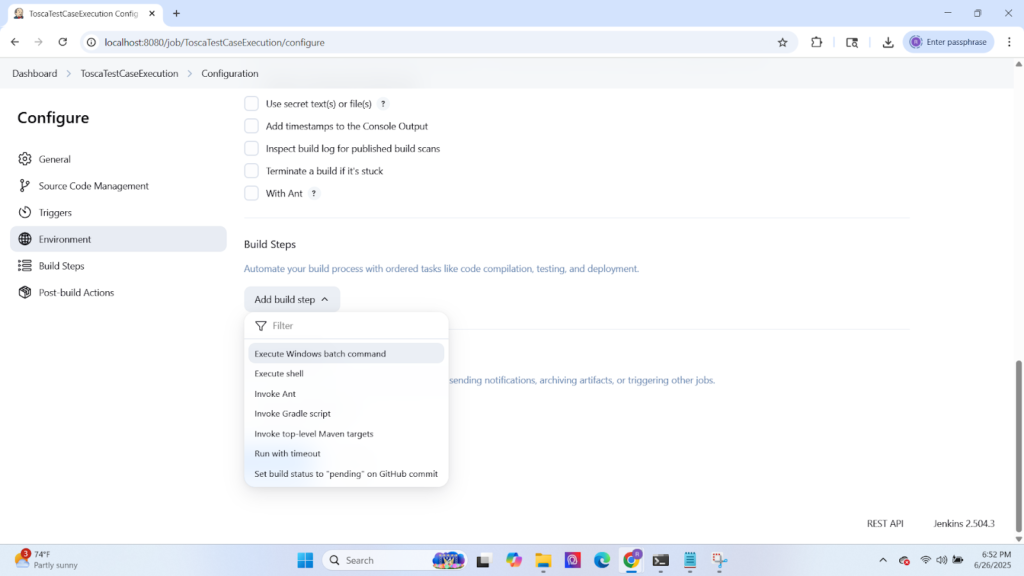
Copy and paste below text and update the Workspace name and related folder
Below example is for a single user workspace . If it is a multi user workspace,need to add a checkout statement in this script.
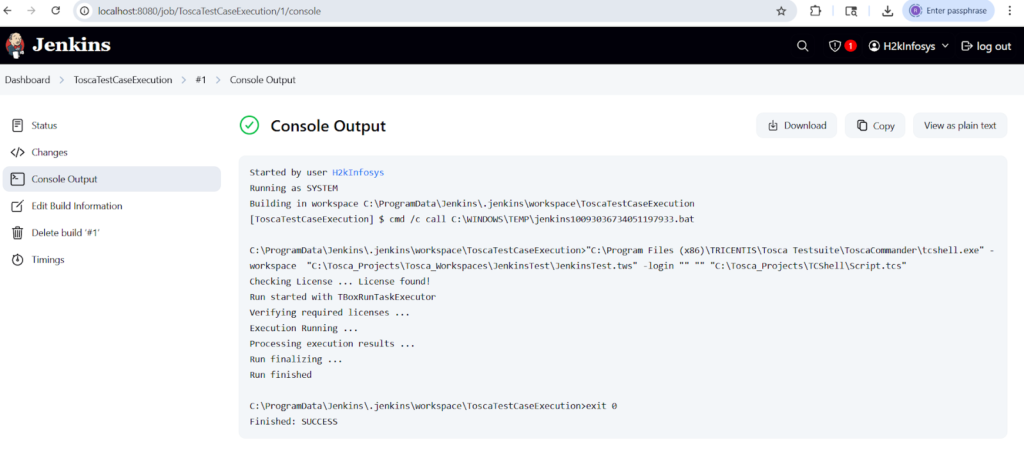
“C:\Program Files (x86)\TRICENTIS\Tosca Testsuite\ToscaCommander\tcshell.exe” -workspace “C:\Tosca_Projects\Tosca_Workspaces\JenkinsTest\JenkinsTest.tws” -login “” “” “C:\Tosca_Projects\TCShell\Script.tcs”
On your local drive ,Create C:\Tosca_Projects\TCShell\Script.tcs file with below info
NOTE: replace H2kExe with the name of the execution list folder that you are planning to execute to run the test cases.
jumptonode “/Execution/ExecutionLists/H2kExe”
task Run
Save
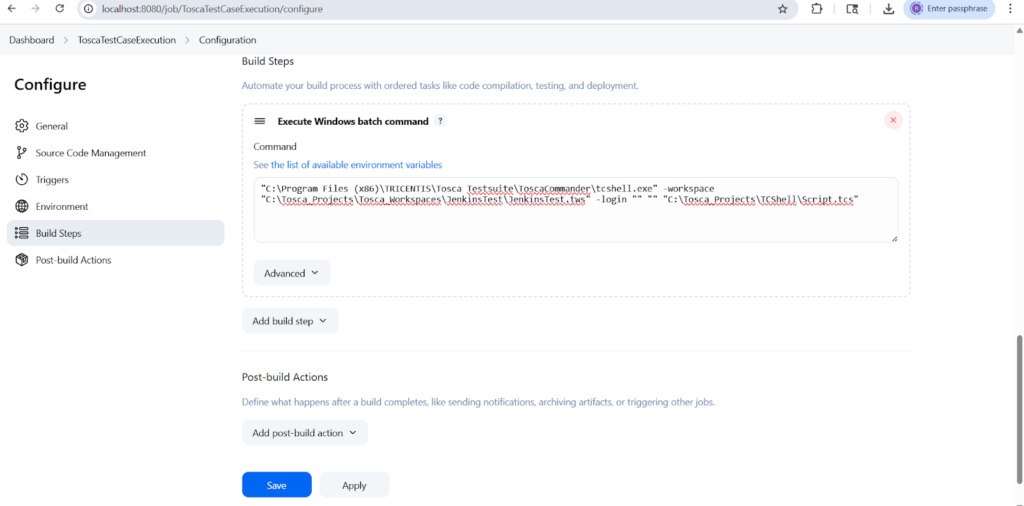
++++
Click on Build Now
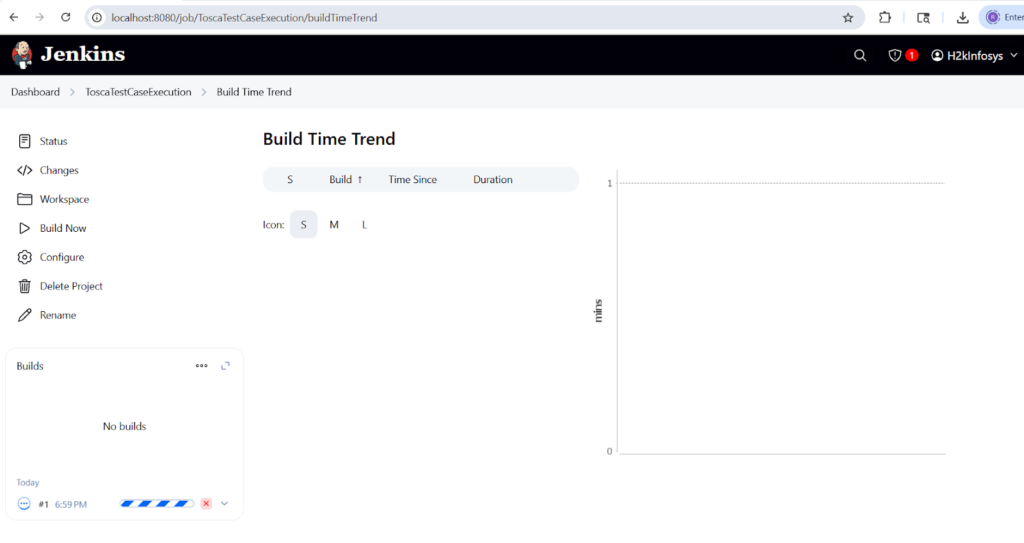
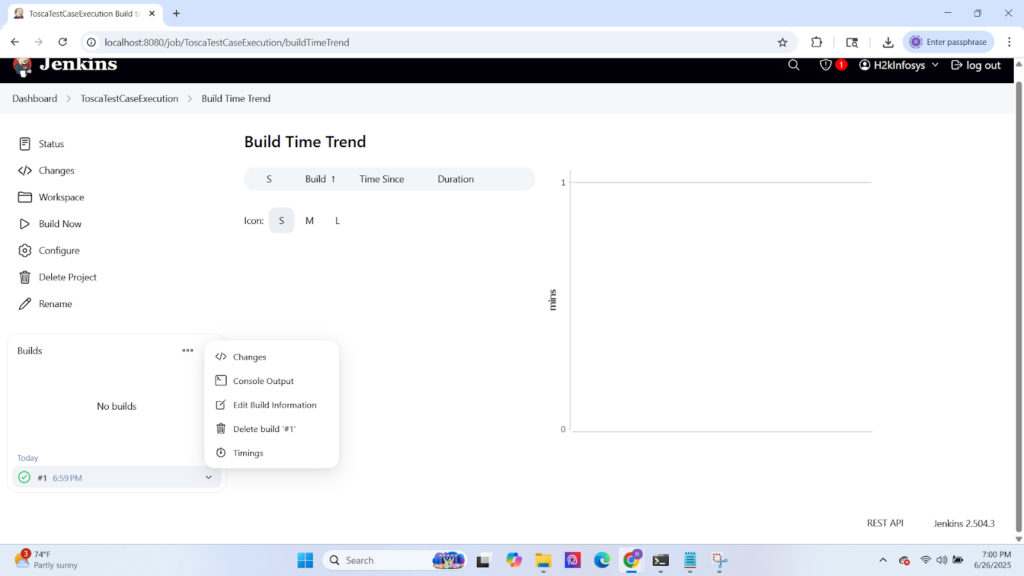
Click on Down Arrow on Green Tick mark and click on Console Output to view the results.