

Introduction
Automation testing is growing fast, and companies now need professionals who can test smarter, faster, and with greater accuracy. Selenium WebDriver is one of the top tools for browser automation. But some real-world problems go beyond ordinary browser interactions. For example, what if a tester must upload a file using a native OS window, press keyboard shortcuts, or automate mouse actions outside the browser? In these situations, regular WebDriver commands are not enough.
This is where the Robot Class in Selenium becomes a powerful solution.
Robot Class allows testers to control keyboard and mouse inputs at the system level. It helps automate tasks that standard Selenium commands cannot handle. Many QA experts use Robot Class when testing complex flows such as file uploads, captchas, pop-ups, print dialogues, or desktop interactions.
Mastering Robot Class gives testers a competitive advantage and boosts employability. According to industry reports, the demand for Selenium professionals has increased more than 35% in the last three years, as companies automate testing environments across industries such as finance, healthcare, e-commerce, and cloud services. Learning advanced concepts through a Selenium certification course can significantly improve job success and salary growth.
In this detailed blog, you will learn:
- What Robot Class in Selenium is
- Why it is used
- How it works internally
- Real-world use cases and examples
- Step-by-step implementation with code
- Limitations and best practices
- Interview questions based on Robot Class
Let’s start learning.
What is Robot Class in Selenium?

Robot Class in Selenium is part of the Java AWT (Abstract Window Toolkit) package. It is used to simulate keyboard keystrokes and mouse movements or clicks. Unlike Selenium WebDriver, which interacts only with web application elements, Robot Class interacts at the system level, enabling testers to automate operations outside the browser.
Package Declaration
import java.awt.Robot;
import java.awt.AWTException;
import java.awt.event.KeyEvent;
Robot Class Syntax
Robot robot = new Robot();
Why Do We Use Robot Class in Selenium?
| Scenario | Why Robot Class is Needed |
|---|---|
| File upload window | WebDriver cannot handle OS level windows |
| Keyboard automation | Enter, Tab, Ctrl, Shift, Esc, etc. |
| Mouse actions | Move pointer, click, scroll |
| Authentication window | Handles non-HTML pop-ups |
| Taking screenshots automatically | Key presses |
| Automating print dialogues | Control+P support |
Robot Class is one of the most important concepts learned in professional automation practice. Most advanced real-time frameworks and corporate projects include Robot Class for handling events beyond Selenium’s default capabilities.
How Does Robot Class Work Internally?
Robot Class generates native system input events. It directly communicates with:
- Keyboard buffer
- Mouse pointer system interface
- OS event handlers
This means:
✔ It imitates actual user behavior
✔ It triggers system-level events
✔ It can access windows outside the browser
This technology is widely used in testing environments where full automation is needed without manual involvement.
Real-World Use Cases of Robot Class in Selenium
File Upload Features
Many file upload forms open a native window. Selenium cannot read that window because its elements are not part of the HTML DOM. Robot Class helps type the file path and click Enter.
Automating Keyboard Shortcuts
For example:
- Copy (Ctrl + C)
- Paste (Ctrl + V)
- Select All (Ctrl + A)
- Save (Ctrl + S)
Mouse-Based Functional Testing
Robot can:
- Move the cursor to a specific coordinate
- Click or double-click
- Scroll up or down
Print Window Automation
When testing PDF or invoice downloads.
Handling Authentication Pop-ups
When basic authentication windows appear before loading a site.
Screenshot Automation
Robot supports system-wide screen capture including desktop portions.
Step-by-Step Guide: How to Use Robot Class in Selenium
Below is the most common real-time example file upload automation.
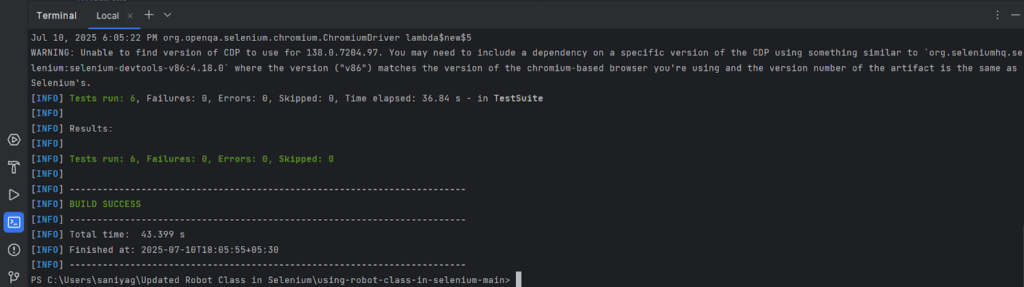
Example 1: Uploading a File Using Robot Class
import java.awt.AWTException;
import java.awt.Robot;
import java.awt.datatransfer.StringSelection;
import java.awt.Toolkit;
import java.awt.event.KeyEvent;
import org.openqa.selenium.By;
import org.openqa.selenium.WebDriver;
import org.openqa.selenium.chrome.ChromeDriver;

public class FileUploadRobot {

    public static void main(String[] args) throws AWTException, InterruptedException {

        WebDriver driver = new ChromeDriver();
        driver.manage().window().maximize();
        driver.get("https://example.com/upload");

        // Click upload button
        driver.findElement(By.id("uploadButton")).click();
        Thread.sleep(2000);

        // Store file path in clipboard
        StringSelection ss = new StringSelection("C:\\Users\\Admin\\Desktop\\sample.pdf");
        Toolkit.getDefaultToolkit().getSystemClipboard().setContents(ss, null);

        // Create Robot class object
        Robot robot = new Robot();
        robot.delay(2000);

        // CTRL + V to paste file path
        robot.keyPress(KeyEvent.VK_CONTROL);
        robot.keyPress(KeyEvent.VK_V);

        robot.keyRelease(KeyEvent.VK_CONTROL);
        robot.keyRelease(KeyEvent.VK_V);

        // Press Enter
        robot.keyPress(KeyEvent.VK_ENTER);
        robot.keyRelease(KeyEvent.VK_ENTER);

        Thread.sleep(3000);
        driver.quit();
    }
}
Robot Class Mouse Control Example
Robot robot = new Robot();
robot.mouseMove(400, 300);
robot.mousePress(InputEvent.BUTTON1_DOWN_MASK);
robot.mouseRelease(InputEvent.BUTTON1_DOWN_MASK);
Advantages of Robot Class
- Automates beyond browser limitations
- Works with all operating systems
- Simplifies file upload automation
- Helps perform real-user input simulation
- Enables keyboard shortcuts and mouse control
Limitations of Robot Class
| Limitation | Description |
|---|---|
| Cannot locate elements | Does not interact with HTML DOM |
| Sensitive to screen resolution | Mouse position depends on coordinates |
| Needs fixed delays | Slower compared to native Selenium |
| Works only on local system | Cannot run on remote cloud machines easily |
Best Practices for Robot Class
✔ Use only when Selenium cannot perform the task
✔ Prefer explicit waits before Robot operations
✔ Upload files using sendKeys() if input fields support it
✔ Avoid unnecessary delays
Robot Class vs AutoIT vs Actions Class
| Feature | Robot Class | AutoIT | Actions Class |
|---|---|---|---|
| OS Level | Yes | Yes | No |
| Browser events | Yes | Yes | Yes |
| File uploads | Yes | Yes | No |
| Keyboard shortcuts | Yes | Yes | Partial |
| Cross platform | Yes | No | Yes |
Interview Questions on Robot Class
- What is Robot Class in Selenium?
- When do we use Robot Class instead of WebDriver commands?
- What are real-time use cases of Robot Class?
- How do you automate file upload using Robot Class?
- What are limitations of Robot Class?
Why Learning Robot Class is Important for Test Engineers

Companies look for automation testers who can manage advanced tasks and deliver complete end-to-end automation. Robot Class skills prove that a tester can automate complex workflows. A Selenium course online helps learners understand advanced automation along with frameworks like TestNG, Maven, Jenkins, and CI/CD.
Professionals trained through a Selenium certification course have higher hiring success and earn better salaries due to practical hands-on knowledge.
Key Takeaways
- Robot Class in Selenium helps automate keyboard and mouse events at the OS level.
- It is useful for file upload pop-ups, keyboard shortcuts, and mouse actions.
- Robot Class is powerful for automating real-world test scenarios beyond browser control.
- Learning Robot Class improves automation capability and enhances job opportunities.
Conclusion
Robot Class in Selenium is an essential skill for every automation tester. It helps automate complex cases that WebDriver alone cannot handle. Strengthen your Selenium knowledge with step-by-step practice and expert guidance.
Enroll in H2K Infosys Selenium certification course today and master real-time automation skills.
Join our Selenium course online to build a job-ready portfolio and launch a strong QA career.