


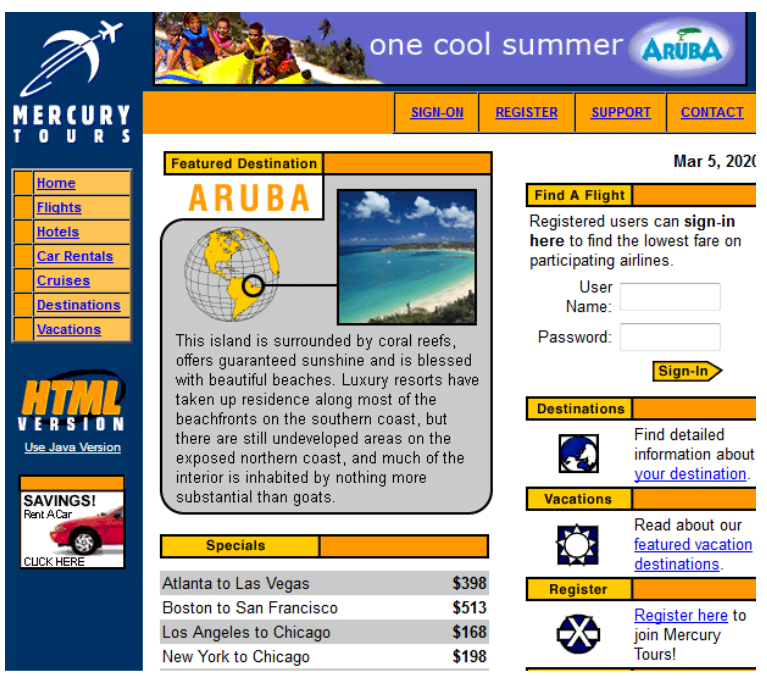
The web application that we are going to test will be the Mercury Tours website. This website provides an online flight reservation system, containing all the elements we need to practice Selenium IDE with Scripts and Assert effectively. The URL of this website is newtours.demoaut.com/, which will also serve as our Base URL.
Creating a Test Script Using Selenium IDE with Scripts and Assert
Now we are going to create our first test script using the most common method of Selenium IDE that is by recording. After that, we will execute our script using the playback feature of Selenium IDE.
Step 1:
- First of all, we will launch the Firefox browser and then go to Selenium IDE.
Then we will type the Base URL: newtours.demoaut.com/ and toggle the Record button on (if it is not toggled on by default).

Step 2:
Navigate to newtours.demoaut.com in Firefox.
Step 3:
- Right-click anywhere on the page, and it will bring the Selenium IDE context menu. Make sure not to click on any hyperlinked objects or images.
Step 4:
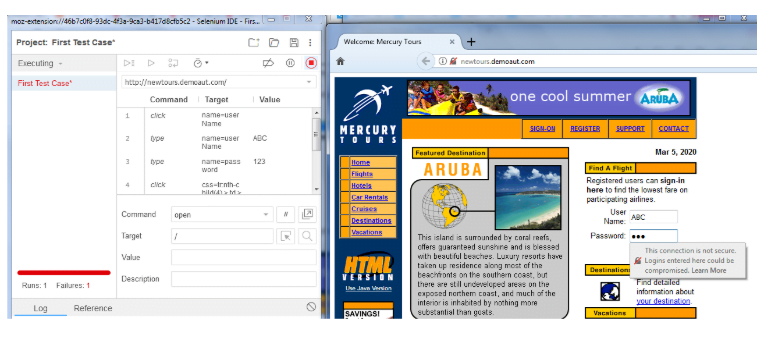
- Type any invalid username like ABC in the User Name text box.
- Type any invalid password like 123 in the Password text box.
Step 5:
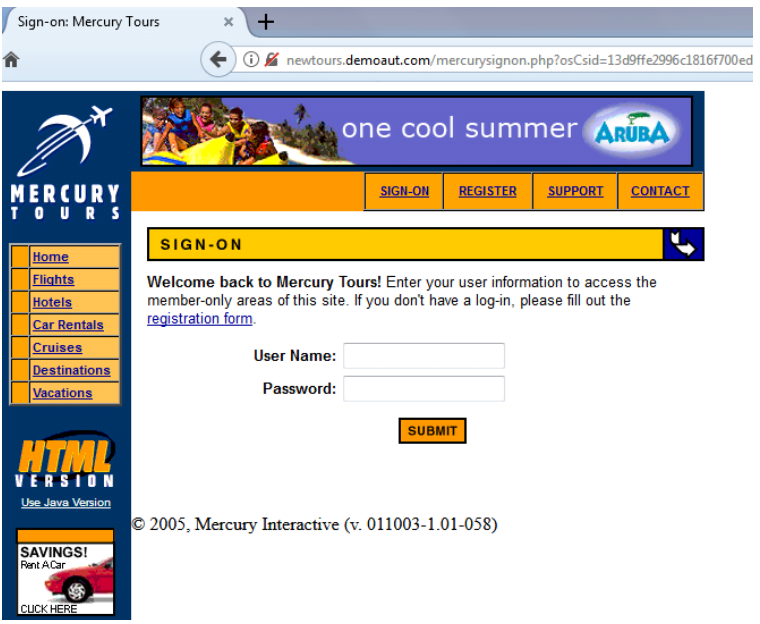
Finally, click on the “Sign-In” button and then you will be navigated to the page which will look like this:
Step 6:
To stop recording again, Toggle the record button as off.
Step 7:
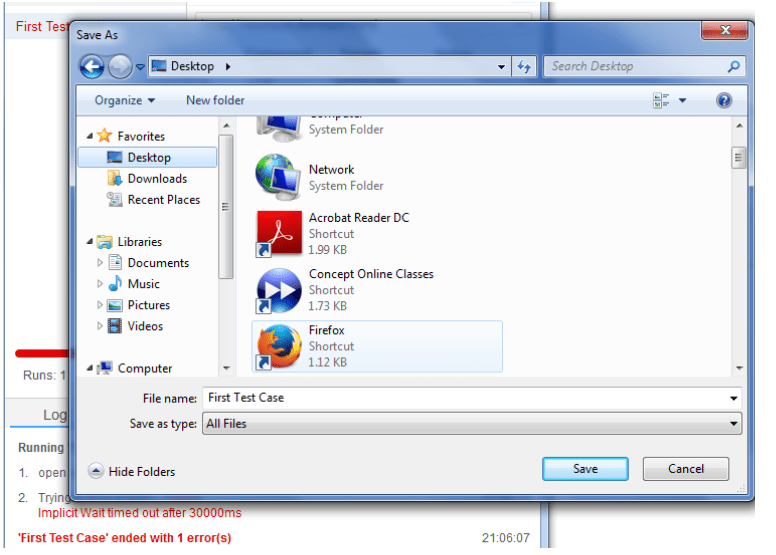
We will now save the test script in a test case. For this, click on the Save button on the right corner in the menu bar.
Step 8:
- Choose the location for saving the test case and then given any name to the Test Case (e.g., “First Test Case.”)
- Now click on the “Save” button.
Step 9:
The file will get saved with .side extension.
Step 10:
Now to execute the complete script, go back to Selenium IDE and click on the Playback, i.e., Run current test case button. Selenium IDE should be able to clone perfectly everything.
Selenese Commands
- The maximum two parameters can be used in the Selenese command: Target and Value.
- The requirement of parameters depends on the Command.
There are three types of commands
1] Actions:
- Commands that are used to interact with page elements are Actions.
- Example: Click command can be considered as an action because it directly interacts with the element you want to click.
- Another Example is the Type command where we put values into a text box, and the text box displays them in return, creating a two-way interaction between you and the text box.
2] Accessors:
- Commands used to store values to a variable.
- Example: StoreTitle is considered as an accessor because its only use is to read the page title and stores it in a variable. It does not create any interaction with any element on the web page.
3] Assertions:
- These commands are used to verify if a specific condition is met or not.
There are three types of Assertions
1] Assert: Failure of assert command stops the test immediately.
2] Verify: In case of verifying command failure, Selenium IDE will first log this failure, and then it will continue with the test execution.
3] WaitFor: waitFor command will first wait for a particular condition to become true before proceeding to the next command.
- Step passes when the condition becomes true within the waiting period.
- Step fails in case the condition is not met and becomes false. It will then log the failure and continues with the execution of the next command.
Some common Commands Used in Selenium IDE
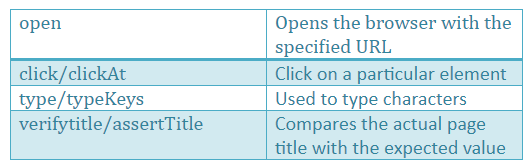
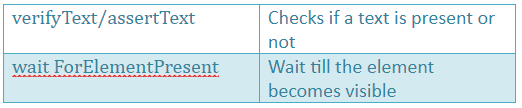
Steps to create a Script Manually
We will now create the test script manually by typing the commands with the help of Inspect Element.
Step 1: Launch Firefox and Selenium IDE and type the base URL (newtours.demoaut.com), ensuring that the record button is OFF.
Step 2: Click on the blank line in the Editor and type Open in the command box. Then press Enter.
Step 3:
- Navigate to the base URL and right-click anywhere and then select option Inspect element.

- Select the second line in the editor and enter the second command by typing “type “using the autocomplete feature.
Step 4:
- Click and paste the value of the <input> tag (that is “userName”) in the Target field.
Step 5:
- For creating the third command, click on the third blank line in the Editor and type the command in the text box.
- Click on the “Inspect” button.
- After clicking on the User Name text box, you will notice that it will automatically start displaying the HTML code for that element.
Step 6:
- We will see that the User Name text box has a NAME attribute instead of ID attribute and so we will use its NAME as the locator. We will copy and paste the NAME value in the Target field.
- Prefix “userName” with “name=” which indicates that Selenium IDE will look for an element whose NAME attribute is “userName.”
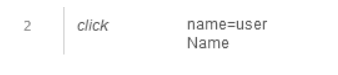
Type any invalid value in the text box “Value” of Selenium IDE.
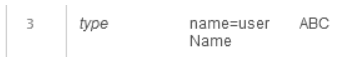
Step 7:
Follow steps 4, 5, and 6 for the password field as well.

Step 8:
Now get the locator for “Login” in the same way and prefix it with “name=.”

Step 9:
As done in the previous section to save the test, follow the same process.
Start Point:
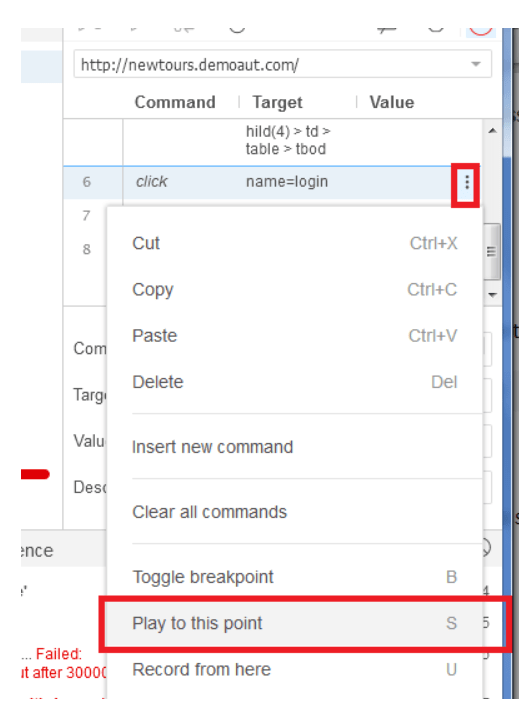
It tells the Selenium IDE from where to start the execution of a test case, and its shortcut key is “S.” Please note that there can be only one start point in a single test script.
BreakPoint:
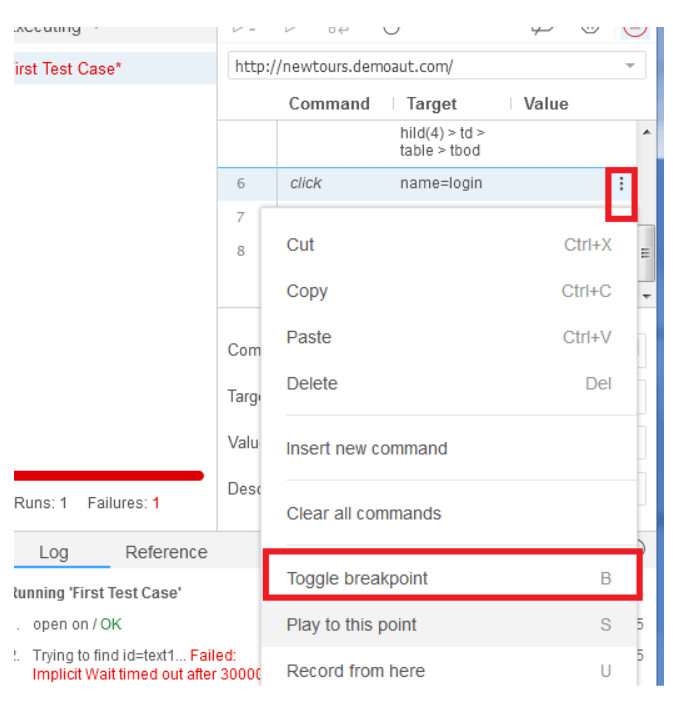
Breakpoint tells the Selenium IDE where to stop the test or pause the execution. The shortcut key for the breakpoint is “B.” There can be multiple breakpoints in a single test script.
Advanced Usage of Selenium IDE with Scripts and Assert
Once you are comfortable creating scripts using Selenium IDE, it is essential to explore advanced techniques that can make your test cases more robust and reusable. By combining Scripts and Assert commands, you can validate multiple conditions, handle dynamic content, and ensure your web application behaves as expected under different scenarios.
Using Multiple Assert Commands in a Single Test
In real-world applications, you often need to verify several elements on a page. For example, after logging in, you might want to confirm the presence of a welcome message, check the title of the page, and validate that a specific button is enabled.
With Selenium IDE, you can add multiple Assert commands sequentially:
- AssertText: Validates that a particular text appears in a specified element.
- AssertTitle: Ensures that the page title matches the expected value.
- AssertElementPresent: Confirms that the required element exists on the page.
Using these commands together allows for precise validation, and any failure will immediately halt the test, preventing false positives.
Combining Verify Commands for Continuous Testing
Unlike Assert, Verify commands log failures but continue executing the test. This is particularly useful when you want to check multiple conditions without stopping the test. For example, verifying all the navigation links on a homepage can be done using multiple VerifyLink commands, ensuring that your site’s functionality is intact even if one link fails.
Parameterizing Scripts for Reusability
To make scripts reusable for different test scenarios, you can parameterize input values using variables. For example:
- Store a username in a variable using store or storeValue.
- Use the variable in your Type command for the login field.
- Similarly, store expected output messages for assertions.
This approach reduces redundancy and allows a single test script to handle multiple sets of data, improving efficiency.
Tips for Maintaining Selenium IDE Test Suites
- Organize Test Cases: Keep related test cases in the same suite.
- Use Start Points and Breakpoints: Efficiently control the execution flow.
- Regular Updates: Update scripts when web page elements change to avoid failures.
- Documentation: Add comments to each step explaining its purpose—this is crucial for team collaboration.
By following these best practices, your Selenium IDE scripts will remain maintainable, scalable, and reliable.