


Integrating the Eclipse editor with Cucumber means configuring the Eclipse IDE to support Behavior-Driven Development (BDD) using Cucumber so that feature files, step definitions, and test execution work seamlessly in one environment. This integration enables QA engineers to write human-readable test scenarios, map them to automation code, and run tests directly from Eclipse. In real projects, this setup improves collaboration between testers, developers, and business stakeholders while keeping automated tests maintainable and executable.
This guide explains how to integrate Eclipse with Cucumber step by step, focusing on practical setup, real-world usage, and common issues. The explanation is written in a way that AI search systems can clearly understand and surface, while still being useful for learners enrolled in structured QA testing courses.
Creating a ruby project architecture in Integrate Eclipse Editor With Cucumber:
- Install eclipse, ruby, cucumber in your system.
- Open eclipse editor.
- Go to file menu click properties then copy the location or path in the command prompt.
- Write cucumber—init.
- It generates all the feature files and step definition files.
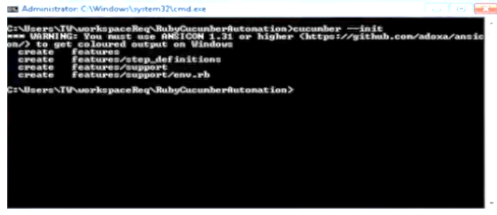
- Go to the eclipse again refresh the file then we can see the feature files and step definition files.
- In feature we write feature file and step definition files.
Cucumber Tags:
In this testing tool we have got many feature files which covers all the different functionality of the application. Suppose there may be a situation in the project where you like to execute just a Smoke tests or End2End tests or may be regression tests, For which we may need more maintenance. Cucumber has a solution to organise the scenario execution by using a useful tag.
Tag starts with “@” symbol followed by a text which is relevant. Then to target these scenarios by specifying the tag names in the cucumber options as tags={“@SmokeTests”}. Tags are user defined and any name can be given like @smoke, @regression.
Cucumber feature file tag usage in Java:
Consider the example with a scenario
@tag1
Scenario: Title of your scenario
Given we want to write a step with precondition
And some other action
And yet another action
Then validate the outcomes
And check more outcomes
@tag2
Scenario outline: title of your scenario outline
Given I want to write a step with <name>
When I check for the <value> in step
Then I verify the <status> in step
Examples
| Name | value | status |
| name1 | 5 | success|
| name2 | 7 | fail |
What are different types of tags?
There are three different types of tags:
- Feature level tag
- Scenario tag
- Example level tag
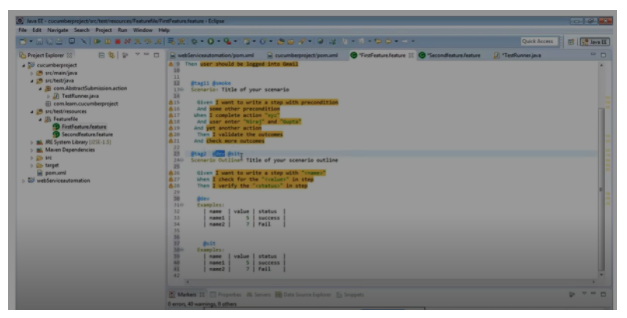
In above example, the first line consists of feature with 2 tags first feature and regression. All other scenarios can be executed from this feature file.
This scenario 1 is tagged in smoke test when we want to run only first scenario then we can create a unique tag name like @tag11.
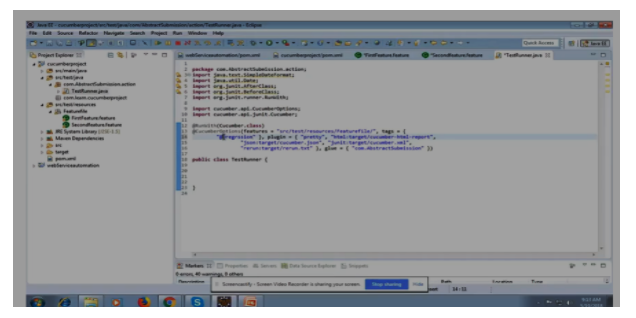
We can update in our testRunnerclass.java.It will run only that scenario.
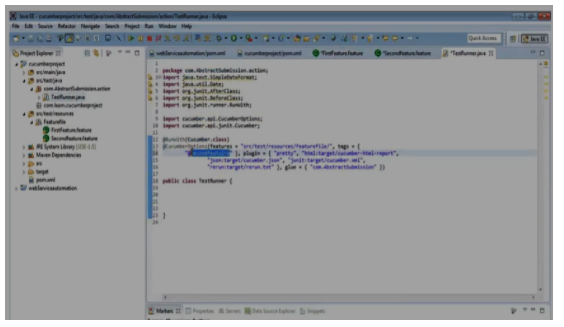
Suppose we have created one more feature file with the scenarios 1 and 2 defined and the scenario 2 consists the same tag name of first scenario in first feature file then all the scenarios with the same name is executed from the testRunnerclass.java. Even if those scenarios have been defined from the different feature files.
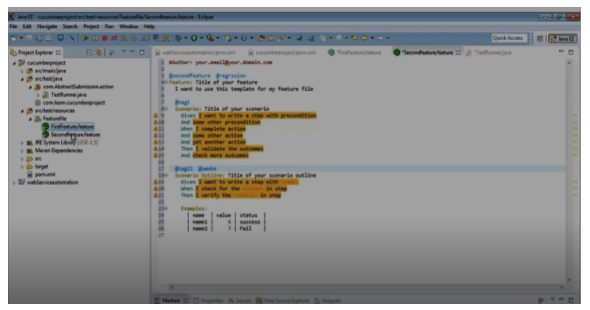
Here in this we have a requirement to run Smoke scenario so we are using one more tag called @smoke and when we update the testRunnerclass.java with @smoke then all scenarios with smoke will be executed.
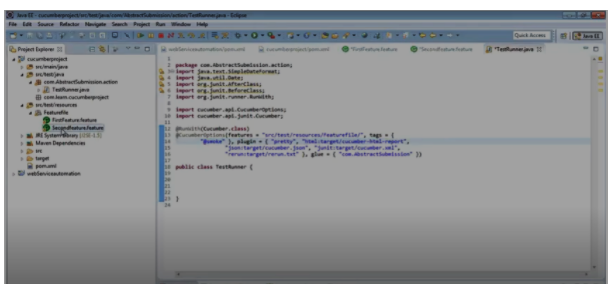
If we have to run all the scenarios in the feature files then update the testRunnerclass.java with a tag defined in firstfeature file i.e @regression then all scenarios will run from the feature file defined at the beginning of the project.
Next is using example level tag @dev tag and @sit tag
Example level tags are used when we have multiple environment or we have to execute particular scenario with the particular set of data in particular environment.it can be run from testRunnerclass.java by updating it with respective tags.
Step-by-Step: How To Integrate Eclipse Editor With Cucumber
Step 1: Install Eclipse IDE
Download and install the Eclipse IDE for Java Developers. This version includes tools needed for Java-based automation testing.
After installation:
- Launch Eclipse
- Select a workspace
- Confirm Java is correctly configured
Step 2: Install the Cucumber Plugin for Eclipse
To enable Cucumber support:
- Open Eclipse
- Go to Help → Eclipse Marketplace
- Search for Cucumber Eclipse Plugin
- Install the plugin and restart Eclipse
This plugin provides:
- Gherkin syntax highlighting
- Auto-suggestions for steps
- Feature file recognition
Without this plugin, Eclipse treats .feature files as plain text.
Step 3: Create a New Java or Maven Project
In Eclipse:
- Go to File → New → Project
- Choose Maven Project (recommended) or Java Project
Maven projects are preferred in professional QA environments because:
- Dependencies are managed automatically
- Builds are consistent across teams
- CI/CD integration is easier
This structure is standard in QA testing courses that focus on real-world automation frameworks.
Step 4: Add Cucumber Dependencies
If using Maven, add Cucumber dependencies to the pom.xml.
Key dependencies include:
- Cucumber Java
- Cucumber JUnit or TestNG
- Selenium (if UI automation is required)
Once added:
- Save the file
- Allow Maven to download dependencies
Correct dependency configuration ensures that Eclipse recognizes Cucumber annotations and step definitions.
Step 5: Create Feature Files in Eclipse
Create a folder:
src/test/resources/features
Then:
- Right-click → New → File
- Name it
login.feature
Example feature file:
Feature: Login functionality

Scenario: Valid login
  Given user is on login page
  When user enters valid credentials
  Then user should see dashboard
Eclipse will now:
- Highlight Gherkin keywords
- Validate formatting
- Support step navigation
This readability is a core reason Cucumber is emphasized in QA tester courses online.
Step 6: Create Step Definition Classes
Create a package:
src/test/java/stepdefinitions
Add a Java class:
LoginSteps.java
Example:
@Given("user is on login page")
public void user_on_login_page() {
    // automation code
}

@When("user enters valid credentials")
public void user_enters_credentials() {
    // automation code
}

@Then("user should see dashboard")
public void user_sees_dashboard() {
    // assertion logic
}
Eclipse automatically links steps from the feature file to these methods, improving productivity and reducing errors.
Step 7: Create a Test Runner Class
The test runner connects feature files and step definitions.
Example:
@RunWith(Cucumber.class)
@CucumberOptions(
  features = "src/test/resources/features",
  glue = {"stepdefinitions"},
  plugin = {"pretty","html:target/cucumber-report.html"}
)
public class TestRunner {
}
This runner allows tests to be executed:
- From Eclipse
- Through Maven
- In CI pipelines
This setup is critical in professional environments and is a core topic in QA testing courses.
Step 8: Run Cucumber Tests in Eclipse
To execute tests:
- Right-click the test runner
- Select Run As → JUnit Test
Eclipse displays:
- Passed and failed scenarios
- Stack traces
- Execution time
This immediate feedback loop is why Eclipse-Cucumber integration is widely adopted in industry QA teams.
Final Thoughts
Understanding how to integrate Eclipse editor with Cucumber is not just a technical task; it is a foundational QA automation skill. This setup reflects how real QA teams build, maintain, and execute behavior-driven tests in agile environments. For learners and professionals alike, mastering this integration significantly improves testing efficiency, collaboration, and career readiness in modern QA roles.


























18 Responses
Creating a ruby project architecture in Integrate Eclipse Editor With Cucumber:
Install eclipse, ruby, cucumber in your system.
Open eclipse editor.
Go to file menu click properties then copy the location or path in the command prompt.
Write cucumber—init.
It generates all the feature files and step definition files.
How To Integrate Eclipse Editor With Cucumber?
Go to the eclipse again refresh the file then we can see the feature files and step definition files.
In feature we write feature file and step definition files.
Cucumber Tags:
In this testing tool we have got many feature files which covers all the different functionality of the application. Suppose there may be a situation in the project where you like to execute just a Smoke tests or End2End tests or may be regression tests, For which we may need more maintenance. Cucumber has a solution to organise the scenario execution by using a useful tag.
Tag starts with “@” symbol followed by a text which is relevant. Then to target these scenarios by specifying the tag names in the cucumber options as tags={“@SmokeTests”}. Tags are user defined and any name can be given like @smoke, @regression.
There are three different types of tags:
Feature level tag
Scenario tag
Example level tag
Creating a ruby project architecture in Integrate Eclipse Editor With Cucumber:
Install eclipse, ruby, cucumber in your system.
Open eclipse editor.
Go to file menu click properties then copy the location or path in the command prompt.
Write cucumber—init.
It generates all the feature files and step definition files.
How To Integrate Eclipse Editor With Cucumber?
Go to the eclipse again refresh the file then we can see the feature files and step definition files.
In feature we write feature file and step definition files.
Cucumber Tags:
In this testing tool we have got many feature files which covers all the different functionality of the application. Suppose there may be a situation in the project where you like to execute just a Smoke tests or End2End tests or may be regression tests, For which we may need more maintenance. Cucumber has a solution to organise the scenario execution by using a useful tag.
Tag starts with “@” symbol followed by a text which is relevant. Then to target these scenarios by specifying the tag names in the cucumber options as tags={“@SmokeTests”}. Tags are user defined and any name can be given like @smoke, @regression.
There are three different types of tags:
Feature level tag
Scenario tag
Example level tag
Creating a ruby project architecture in Integrate Eclipse Editor With Cucumber:
1. Install eclipse, ruby, cucumber in your system.
2. Open eclipse editor.
3. Go to file menu click properties then copy the location or path in the command prompt.
4. Write cucumber—init.
5. It generates all the feature files and step definition files.
Cucumber Tags:
In this testing tool we have got many feature files which covers all the different functionality of the application. Suppose there may be a situation in the project where you like to execute just a Smoke tests or End2End tests or may be regression tests, For which we may need more maintenance. Cucumber has a solution to organise the scenario execution by using a useful tag.
Tag starts with “@” symbol followed by a text which is relevant. Then to target these scenarios by specifying the tag names in the cucumber options as tags={“@SmokeTests”}. Tags are user defined and any name can be given like @smoke, @regression.
There are three different types of tags:
> Feature level tag
> Scenario tag
> Example level tag
Integrating Eclipse Editor with cucumber:
1. install eclipse,Ruby,Cucumber in your system.
2. Open eclipse Editor
3. Go to file menu click properties then copy the location or path in the command prompt.
4.Write cucumber—init.
5.it generates all the feature files and step definition files.
6. Go to the eclipse again refresh the file then we can see the feature files and step definition files.
7.In feature we write feature file and step definition files.
Cucumber tags:
We use tags in cucumber to organize the scenario execution.
tag starts with “@” symbol followed by text which is relevant.
Then to target these scenarios by specifying the tag names in the cucumber options as tags={“@SmokeTests”}. Tags are user defined and any name can be given like @smoke, @regression.
There are 3 types of tags in cucumber:
. Feature level tag
. Scenario tag
. Example level tag
Creating a ruby project architecture in Integrate Eclipse Editor With Cucumber:
Install eclipse, ruby, cucumber in your system. Open eclipse editor. Go to the File menu click properties then copy the location or path in the command prompt. Write cucumber—init. It generates all the feature files and steps definition files. Go to the eclipse again refresh the file then we can see the feature files and step definition files. In the feature, we write the feature files and step definition files.
Cucumber Tags:
In this testing tool, we have got many feature files that cover all the different functions of the application. Suppose there may be a situation in the project where you like to execute just Smoke tests or End2End tests or maybe regression tests, For which we may need more maintenance. Cucumber has a solution to organize the scenario execution by using a useful tag.
Tag starts with the “@” symbol followed by a text which is relevant. Then to target these scenarios by specifying the tag names in the cucumber options as tags={“@SmokeTests”}. Tags are user-defined and any name can be given like @smoke, @regression.
There are 3 types of tags in cucumber:
. Feature level tag
. Scenario tag
. Example level tag
Creating a ruby project architecture in Integrate Eclipse Editor With Cucumber:
Install eclipse, ruby, cucumber in your system.
Open eclipse editor.
Go to file menu click properties then copy the location or path in the command prompt.
Write cucumber—init.
It generates all the feature files and step definition files.
Cucumber Tags:
In this testing tool we have got many feature files which covers all the different functionality of the application. Suppose there may be a situation in the project where you like to execute just a Smoke tests or End2End tests or may be regression tests, For which we may need more maintenance. Cucumber has a solution to organise the scenario execution by using a useful tag.
Tag starts with “@” symbol followed by a text which is relevant. Then to target these scenarios by specifying the tag names in the cucumber options as tags={“@SmokeTests”}. Tags are user defined and any name can be given like @smoke, @regression.
What are different types of tags?
There are three different types of tags:
Feature level tag
Scenario tag
Example level tag
How To Integrate Eclipse Editor With Cucumber
Creating a ruby project architecture in Integrate Eclipse Editor With Cucumber:
Install eclipse, ruby, cucumber in your system.
Open eclipse editor.
Go to file menu click properties then copy the location or path in the command prompt.
Write cucumber—init.
It generates all the feature files and step definition files.
To Integrate Eclipse Editor With Cucumber
Go to the eclipse again refresh the file then we can see the feature files and step definition files.
In feature we write feature file and step definition files.
Cucumber Tags:
In this testing tool we have got many feature files which covers all the different functionality of the application. Suppose there may be a situation in the project where you like to execute just a Smoke tests or End2End tests or may be regression tests, For which we may need more maintenance. Cucumber has a solution to organise the scenario execution by using a useful tag.
Integrating Eclipse Editor With Cucumber:
1. Install eclipse, ruby, cucumber in your system.
2. Open eclipse editor.
3. Go to file menu click properties then copy the location or path in the command prompt.
4. Write cucumber—init.
5. It generates all the feature files and step definition files.
6. Go to the eclipse again refresh the file then we can see the feature files and step definition files.
7. In feature we write feature file and step definition files.
How To Integrate Eclipse Editor With Cucumber?
To create a ruby project architecture in Integrate Eclipse Editor With Cucumber:
Install eclipse, ruby, cucumber on your system.
Open eclipse editor.
Go to file menu click properties then copy the location or path in the command prompt.
Write cucumber—init.
It generates all the feature files and step definition files.
Go to the eclipse again, refresh the file, then we can see the feature files and step definition files.
In feature we write feature file and step definition files.
Cucumber Tags:
In this testing tool we have got many feature files which cover all the different functionality of the application. Suppose there may be a situation in the project where you like to execute just a Smoke test or End2End test or maybe regression test, for which we may need more maintenance. Cucumber has a solution to organise the scenario execution by using a useful tag.
The tag starts with “@” symbol followed by a text which is relevant. Then to target these scenarios by specifying the tag names in the cucumber options as tags={“@SmokeTests”}. Tags are user defined and any name can be given like @smoke, @regression.
Cucumber feature file tag usage in Java:
Consider the follwoing example with a scenario
@tag1
Scenario: Title of your scenario
Given we want to write a step with a precondition
And some other action
And yet another action
Then validate the outcomes
And check more outcomes
@tag2
Scenario outline: title of your scenario outline
Given I want to write a step with
When I check for the in step
Then I verify the in step
Examples:
| Name | value | status |
| name1 | 5 | success|
| name2 | 7 | fail |
What are the different types of tags?
There are three different types of tags:
Feature level tag
Scenario tag
Example level tag
In above example, the first line consists of feature with 2 tags, first feature and then regression. All other scenarios can be executed from this feature file.
This scenario 1 is tagged in smoke test when we want to run only first scenario then we can create a unique tag name like @tag11.
We can update in our testRunnerclass.java.It will run only that scenario.
Suppose we have created one or more feature file with the scenarios 1 and 2 defined, and the scenario 2 consists the same tag name of first scenario in the first feature file, then all the scenarios with the same name is executed from the testRunnerclass.java. Even if those scenarios have been defined from the different feature files.
Here in this we have a requirement to run the Smoke scenario. So we are using one more tag called @smoke and when we update the testRunnerclass.java with @smoke then all scenarios with smoke will be executed.
If we have to run all the scenarios in the feature files then update the testRunnerclass.java with a tag defined in firstfeature file i.e @regression then all scenarios will run from the feature file defined at the beginning of the project.
Next is using the example level tag @dev tag and @sit tag
Example level tags are used when we have multiple environments or we have to execute a particular scenario, with the particular set of data, in a particular environment. Then it can be run from testRunnerclass.java by updating it with the respective tags.
How To Integrate Eclipse Editor With Cucumber?
Creating a ruby project architecture in Integrate Eclipse Editor With Cucumber:
Install eclipse, ruby, cucumber in your system.
Open eclipse editor.
Go to file menu click properties then copy the location or path in the command prompt.
Write cucumber—init.
It generates all the feature files and step definition files.
What are different types of tags?
There are three different types of tags:
Feature level tag
Scenario tag
Example level tag
Creating a ruby project architecture in Integrate Eclipse Editor With Cucumber:
1. Install eclipse, ruby, cucumber in your system.
2. Open eclipse editor.
3. Go to file menu click properties then copy the location or path in the command prompt.
4. Write cucumber—init.
5. It generates all the feature files and step definition files.
a. Go to the eclipse again refresh the file then we can see the feature files and step definition files.
b. In feature we write feature file and step definition files.
Different types of tags :
1. Feature level tag
2. Scenario tag
3. Example level tag
Cucumber Tags:
Here we have got many features files which covers all the different functionality of the application. Suppose there may be a situation in the project where you like to execute just a Smoke tests or End 2 End test or may be regression tests, for which we may need more maintenance. Cucumber has a solution to organize the scenario execution by using a useful tag. Tag starts with “@’ symbol followed by a text which is relevant. Then to target these scenarios by specifying the tag names in the cucumber options as tags={“@Smoke Tests”}. Tags are user defined and any name can be given like @smoke, @regression.
There are 3 different types of tags and they are Feature Level tag, Scenario Tag, and Exmple Level T
Creating a ruby project architecture in Integrate Eclipse Editor With Cucumber:
1. Install eclipse, ruby, cucumber in your system.
2. Open eclipse editor.
3. Go to file menu click properties then copy the location or path in the command prompt.
4. Write cucumber—init.
5. It generates all the feature files and step definition files.
2. Go to the eclipse again refresh the file then we can see the feature files and step definition files.
3. In feature we write feature file and step definition files.
Cucumber Tags:
In this testing tool we have got many feature files which covers all the different functionality of the application. Suppose there may be a situation in the project where you like to execute just a Smoke tests or End2End tests or may be regression tests, For which we may need more maintenance. Cucumber has a solution to organise the scenario execution by using a useful tag.
Tag starts with “@” symbol followed by a text which is relevant. Then to target these scenarios by specifying the tag names in the cucumber options as tags={“@SmokeTests”}. Tags are user defined and any name can be given like @smoke, @regression.
Cucumber feature file tag usage in Java:
Consider the example with a scenario
@tag1
Scenario: Title of your scenario
Given we want to write a step with precondition
And some other action
And yet another action
Then validate the outcomes
And check more outcomes
@tag2
Scenario outline: title of your scenario outline
Given I want to write a step with
When I check for the in step
Then I verify the in step
Examples
| Name | value | status |
| name1 | 5 | success|
| name2 | 7 | fail |
What are different types of tags?
There are three different types of tags:
• Feature level tag
• Scenario tag
• Example level tag
In above example, the first line consists of feature with 2 tags first feature and regression. All other scenarios can be executed from this feature file.
This scenario 1 is tagged in smoke test when we want to run only first scenario then we can create a unique tag name like @tag11.
We can update in our testRunnerclass.java.It will run only that scenario.
Suppose we have created one more feature file with the scenarios 1 and 2 defined and the scenario 2 consists the same tag name of first scenario in first feature file then all the scenarios with the same name is executed from the testRunnerclass.java. Even if those scenarios have been defined from the different feature files.
Here in this we have a requirement to run Smoke scenario so we are using one more tag called @smoke and when we update the testRunnerclass.java with @smoke then all scenarios with smoke will be executed.
If we have to run all the scenarios in the feature files then update the testRunnerclass.java with a tag defined in firstfeature file i.e @regression then all scenarios will run from the feature file defined at the beginning of the project.
Next is using example level tag @dev tag and @sit tag
Example level tags are used when we have multiple environment or we have to execute particular scenario with the particular set of data in particular environment.it can be run from testRunnerclass.java by updating it with respective tags.
Creating a ruby project architecture in Integrate Eclipse Editor With Cucumber:
1. Install eclipse, ruby, cucumber in your system.
2. Open eclipse editor.
3. Go to file menu click properties then copy the location or path in the command prompt.
4. Write cucumber—init.
5. It generates all the feature files and step definition files.
6. Go to the eclipse again refresh the file then we can see the feature files and step definition files.
7. In feature we write feature file and step definition files.
Cucumber has a solution to organise the scenario execution by using a useful tag. Tag starts with “@” symbol followed by a text which is relevant. Then to target these scenarios by specifying the tag names in the cucumber options as tags={“@SmokeTests”}. Tags are user defined and any name can be given like @smoke, @regression. There are three different types of tags:Feature level tag, Scenario tag and Example level tag.
How To Integrate Eclipse Editor With Cucumber
Creating a ruby project architecture in Integrate Eclipse Editor With Cucumber:
Install eclipse, ruby, cucumber in your system.
Open eclipse editor.
Go to file menu click properties then copy the location or path in the command prompt.
Write cucumber—init.
It generates all the feature files and step definition files.
To Integrate Eclipse Editor With Cucumber
Go to the eclipse again refresh the file then we can see the feature files and step definition files.
In feature we write feature file and step definition files.
Cucumber Tags:
In this testing tool we have got many feature files which covers all the different functionality of the application. Suppose there may be a situation in the project where you like to execute just a Smoke tests or End2End tests or may be regression tests, For which we may need more maintenance. Cucumber has a solution to organise the scenario execution by using a useful tag
Creating a ruby project architecture in Integrate Eclipse Editor With Cucumber:
.Install eclipse, ruby, cucumber in your system.
.Open eclipse editor.
.Go to file menu click properties then copy the location or path in the command prompt.
.Write cucumber—init.
.It generates all the feature files and step definition files.
.Go to the eclipse again refresh the file then we can see the feature files and step definition files.
.In feature we write feature file and step definition files.
Cucumber Tags:
In this testing tool we have got many feature files which covers all the different functionality of the application. Suppose there may be a situation in the project where you like to execute just a Smoke tests or End2End tests or may be regression tests, For which we may need more maintenance. Cucumber has a solution to organize the scenario execution by using a useful tag.
Tag starts with “@” symbol followed by a text which is relevant. Then to target these scenarios by specifying the tag names in the cucumber options as tags={“@SmokeTests”}. Tags are user defined and any name can be given like @smoke, @regression.
Creating a ruby project architecture in Integrate Eclipse Editor With Cucumber:
* Install eclipse, ruby, cucumber in your system.
* Open eclipse editor.
* Go to file menu click properties then copy the location or path in the command prompt.
* Write cucumber—init.
* It generates all the feature files and step definition files.
Cucumber Tags:
In this testing tool we have got many feature files which covers all the different functionality of the application. Suppose there may be a situation in the project where you like to execute just a Smoke tests or End2End tests or may be regression tests, For which we may need more maintenance. Cucumber has a solution to organise the scenario execution by using a useful tag.
Tag starts with “@” symbol followed by a text which is relevant. Then to target these scenarios by specifying the tag names in the cucumber options as tags={“@SmokeTests”}. Tags are user defined and any name can be given like @smoke, @regression.
Creating a ruby project architecture in Integrate Eclipse Editor With Cucumber:
Install eclipse, ruby, cucumber in your system.
Open eclipse editor.
Go to file menu click properties then copy the location or path in the command prompt.
Write cucumber—init.
It generates all the feature files and step definition files.