


The demand for automation testers is increasing as companies push for faster releases and more stable applications. Manual testing cannot support this speed. Teams now depend on automation to maintain accuracy and reduce repetitive tasks. One of the strongest setups in the industry is Selenium C# WebDriver NUnit. It combines the power of Selenium, the stability of C#, and the flexibility of NUnit to create a clean, simple, and scalable automation framework.
Learners who join a Selenium certification course or a Selenium course online often start with this stack because it gives a smooth learning curve and prepares them for enterprise-level automation. This guide explains everything from setup to best practices using clear, practical steps and real examples.
Introduction
Modern applications update every week or even every day. Testers must confirm that every page, button, and workflow behaves as expected. Selenium helps automate browser actions, and C# adds clean structure and high performance. When these tools work together with NUnit, testers get a stable automation environment that supports strong reporting, parallel execution, and CI/CD integration.
This guide explains what Selenium C# WebDriver NUnit is, why companies use it, how you can build tests with it, and how to apply it in real-world workflows.
Understanding Selenium C#
Selenium is the most widely used automation tool for web browsers. When testers use C# with Selenium, they get a reliable, object-oriented language that supports quick execution and easy maintenance. Many enterprise companies rely on .NET systems, which makes Selenium C# a perfect match for automation testing in corporate environments.
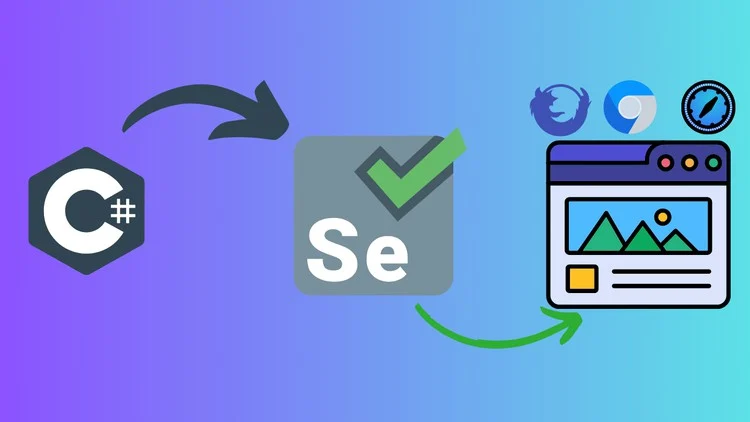
Selenium C# allows testers to automate:
- Login pages
- Search operations
- Dashboards
- Shopping carts
- End-to-end workflows
- Regression cycles
This combination is ideal for testers who want long-term career opportunities.
What WebDriver Does in Selenium C#
WebDriver is the core automation engine in Selenium. It controls the browser and performs all user actions. Testers use WebDriver to open pages, click elements, type text, read text, and validate page behavior.
Each browser uses its own driver file:
- ChromeDriver for Chrome
- GeckoDriver for Firefox
- EdgeDriver for Microsoft Edge
Selenium C# WebDriver interacts with these drivers to run real browser actions, making tests reliable and accurate.
Why C# Is a Strong Choice for Selenium
C# is fast, clean, and widely used in enterprise-level projects. It integrates easily with Visual Studio, Azure DevOps, GitHub Actions, Jenkins, and other industry tools.
Key strengths of Selenium C# include:
- Strong performance in large automation suites
- Support for multi-threading and parallel execution
- Easy debugging in Visual Studio
- Clean and simple code structure
- Large support community
If you plan to enroll in a Selenium course online, learning Selenium C# gives you a strong advantage because many companies expect testers to know .NET-based automation.
Understanding NUnit for Selenium C#
NUnit is a widely used testing framework for .NET applications. Testers use it to write, organize, and run test cases with attributes. NUnit supports parallel execution, clean reporting, grouping of tests, and smooth CI integration.
Common NUnit attributes include:
[Test]for test methods[SetUp]for methods that run before each test[TearDown]for cleanup actions[OneTimeSetUp]for initializing resources[OneTimeTearDown]for clearing resources
This structure makes Selenium C# frameworks easy to control and scale.
Why Selenium C# WebDriver NUnit Works Well Together
The combination works well because each component contributes unique strengths:
- Selenium handles browser automation
- C# provides performance and structure
- NUnit organizes test cases and supports automation pipelines
Together, they create a stable automation environment that supports daily regression cycles, continuous integration, and large-scale test execution.
This setup is common in companies that use Microsoft technologies or run .NET applications. Many learning paths in a Selenium certification course prepare students to use this exact framework.
Setting Up Selenium C# WebDriver NUnit

You can set up this framework in a few simple steps.
Install Visual Studio, create a new C# Console App project, and then install the required packages through NuGet. These packages include Selenium.WebDriver, Selenium.Support, NUnit, NUnit3TestAdapter, and Microsoft.NET.Test.Sdk.
After this, download the browser driver files like ChromeDriver, EdgeDriver, or GeckoDriver based on your browser choice. Place the driver file in your project directory or add it to the system path.
Once this setup is complete, you can start writing Selenium C# tests immediately.
First Selenium C# WebDriver NUnit Test Example
Here is a simple example that shows how Selenium C# WebDriver NUnit works together.
using NUnit.Framework;
using OpenQA.Selenium;
using OpenQA.Selenium.Chrome;

namespace SeleniumCSharpDemo
{
    public class Tests
    {
        IWebDriver driver;

        [SetUp]
        public void SetUp()
        {
            driver = new ChromeDriver();
            driver.Manage().Window.Maximize();
        }

        [Test]
        public void GoogleSearchTest()
        {
            driver.Navigate().GoToUrl("https://www.google.com/");
            driver.FindElement(By.Name("q")).SendKeys("H2K Infosys");
            driver.FindElement(By.Name("btnK")).Submit();

            Assert.IsTrue(driver.Title.Contains("H2K"));
        }

        [TearDown]
        public void TearDown()
        {
            driver.Quit();
        }
    }
}
This example opens Google, searches for a keyword, and validates the page title.
Locators in Selenium C#
Testers use locators to find elements on a webpage. Selenium C# supports all major locator types.
Common locator types:
- ID
- Name
- ClassName
- XPath
- CSS Selector
- TagName
- LinkText
Example:
driver.FindElement(By.Id("username")).SendKeys("admin");
XPath and CSS are the most flexible locator types. XPath is powerful for dynamic elements, while CSS is faster.
Real-World Uses of Selenium C# WebDriver NUnit
Companies use this stack for:
- Login automation
- Form validation
- Search features
- Shopping cart tests
- Data-driven testing
- Regression cycles
- Smoke testing
- Cross-browser checks
Automation reduces manual errors and helps teams push new releases faster.
Using the Page Object Model in Selenium C#
Page Object Model (POM) helps create clean and reusable code. It separates page elements from test logic.
Example login page:
public class LoginPage
{
    private IWebDriver driver;

    public LoginPage(IWebDriver driver)
    {
        this.driver = driver;
    }

    IWebElement username => driver.FindElement(By.Id("username"));
    IWebElement password => driver.FindElement(By.Id("password"));
    IWebElement loginBtn => driver.FindElement(By.Id("login"));

    public void Login(string user, string pass)
    {
        username.SendKeys(user);
        password.SendKeys(pass);
        loginBtn.Click();
    }
}
POM improves readability and reduces code duplication.
Parallel Testing With NUnit
NUnit supports parallel test execution to speed up test cycles. You can enable it using assembly attributes.
Example:
[assembly: Parallelizable(ParallelScope.Fixtures)]
Parallel execution is useful for large test suites and continuous integration.
Reporting Options for Selenium C#
Reports help testers understand failures and improve test quality. Popular reporting tools for Selenium C# include:
- ExtentReports
- Allure Reports
- ReportUnit
- NUnit XML reports
These tools show screenshots, failure logs, and execution timelines.
Best Practices for Selenium C# WebDriver NUnit
Testers follow several best practices to keep automation stable:
- Use Page Object Model
- Use WebDriverWait instead of Thread.Sleep
- Maintain organized test data
- Keep test cases independent
- Use descriptive test names
- Avoid hard-coded values
- Clean up browser sessions properly
Following these steps improves test reliability and reduces flakiness.
Common Challenges and How to Fix Them
Testers face issues such as slow execution, element timing problems, and version mismatches. Using WebDriverWait solves timing issues. Updating driver files fixes browser launch errors. Parallel execution helps reduce overall test run time. Clean locator strategies reduce flaky tests.
Industry Insights and Research

Industry reports show that more than seventy percent of global companies prefer Selenium for web automation. About forty percent of enterprise teams use C# for their internal systems, which makes Selenium C# a natural choice for automation. Test automation helps reduce release cycles by fifty to seventy percent, according to multiple industry surveys. These insights explain why Selenium C# WebDriver NUnit frameworks continue to grow in demand.
Key Takeaways
Selenium C# WebDriver NUnit is a strong and reliable test automation stack. It offers clean code, fast execution, stable test structure, and smooth CI/CD integration. It works well for regression cycles, cross-browser testing, and enterprise applications. Testers who learn this combination build strong careers in QA automation.
Conclusion
Build real automation skills with expert guidance.
Join H2K Infosys’ Selenium course to master Selenium C# and grow your testing career today.