

Introduction: Why Automate Twitter Login with Python?
In today’s digital world, automation skills open doors to faster testing, smarter workflows, and stronger career growth. Learning how to automatically log in on Twitter using Python and Selenium Webdriver helps you move from theory to real-world application. This hands-on guide shows how web automation works in practice, how Python powers modern testing tasks, and how these skills connect to professional roles in QA, DevOps, and software development. If you are exploring the best python course, a python certification course, or a Python Online Course Certification, this project gives you a strong, practical example to build confidence and job-ready skills.
Web automation is a core skill in testing, data validation, and process automation roles. Companies use automation to reduce manual effort, improve speed, and maintain quality across digital platforms. Twitter, now widely used for business communication, marketing, and customer engagement, provides a realistic platform to practice automation skills.
By building a Python script that logs in automatically, you learn how browsers behave, how web elements respond to user input, and how automated tests validate workflows. These skills align closely with what hiring managers look for when they review candidates with a best python certification or a python certification course on their resume.
This guide focuses on building a complete solution using Selenium Webdriver and Python, with clear steps, clean code, and real-world best practices.
What Is Selenium Webdriver and Why Use It?
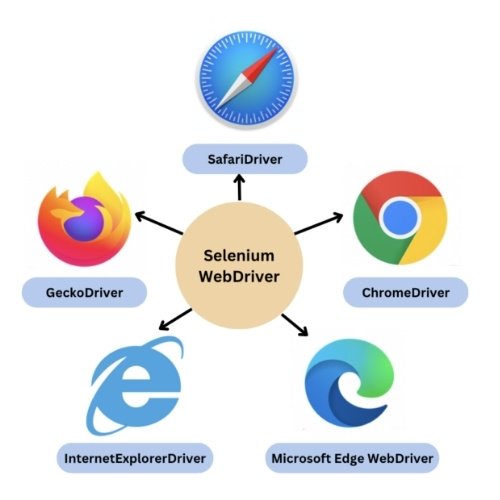
Selenium Webdriver is an open-source tool that allows programs to control web browsers. It can open web pages, click buttons, enter text, and validate results, just like a human user would.
Key Benefits of Selenium Webdriver
- It supports major browsers like Chrome, Firefox, and Edge.
- It works well with Python, Java, and other popular languages.
- It fits into test automation, CI/CD pipelines, and QA workflows.
- It allows real user behavior simulation on live websites.
Many organizations rely on Selenium Webdriver to test login systems, shopping carts, forms, and dashboards. Learning it helps you connect your Python skills to practical automation roles.
Real-World Use Cases for Login Automation
Before writing code, it helps to understand how companies use login automation in real projects.
Common Business Applications
- Quality Assurance Testing: Teams verify login flows after updates.
- Social Media Management: Agencies test multiple accounts for platform stability.
- Data Validation: Analysts confirm secure access before scraping or tracking data.
- Security Checks: Teams simulate login attempts to review system behavior.
These use cases show why Selenium Webdriver knowledge pairs well with a python online course certification and professional training paths.
Tools and Environment Setup
To start, you need a simple and stable setup.
Software Requirements
- Python 3.9 or later
- Google Chrome browser
- ChromeDriver (matching your browser version)
- Selenium library for Python
- Code editor like VS Code or PyCharm
Installing Python Libraries
Open your terminal and run:
pip install selenium
This command installs the Selenium package that allows Python to work with Selenium Webdriver.
Understanding Twitter’s Login Page Structure
Twitter’s login page uses dynamic elements. This means page content loads and changes based on user actions. When working with Selenium Webdriver, you must wait for elements to appear before interacting with them.
Key Elements You Will Automate
- Username input field
- Password input field
- Login button
- Confirmation page or home feed
Knowing this structure helps you write stable and readable automation scripts.
Step-by-Step Guide to Automatic Login on Twitter
This section walks through the full process using Python and Selenium Webdriver.
Step 1: Import Required Libraries
Create a Python file and start with these imports:
from selenium import webdriver
from selenium.webdriver.common.by import By
from selenium.webdriver.common.keys import Keys
import time
These lines allow Python to control the browser and locate elements on the page using Selenium Webdriver.
Step 2: Set Up the Browser Driver
Download ChromeDriver and place it in your project folder. Then add this code:
driver = webdriver.Chrome()
driver.maximize_window()
This opens Chrome and prepares it for automation.
Step 3: Open Twitter Login Page
driver.get("https://twitter.com/login")
time.sleep(5)
The delay allows all elements to load before the script continues. This step improves stability when working with Selenium Webdriver.
Step 4: Locate Username Field
username_input = driver.find_element(By.NAME, "text")
username_input.send_keys("your_email_or_username")
username_input.send_keys(Keys.RETURN)
time.sleep(5)
This code finds the username field and enters your login ID.
Step 5: Locate Password Field
password_input = driver.find_element(By.NAME, "password")
password_input.send_keys("your_password")
password_input.send_keys(Keys.RETURN)
time.sleep(5)
This step completes the login process using Selenium Webdriver and Python.
Step 6: Verify Login Success
if "home" in driver.current_url:
    print("Login successful")
else:
    print("Login failed")
This check confirms that your automation script reached the Twitter home page.
Full Python Script Example
Here is the complete working script for clarity:
from selenium import webdriver
from selenium.webdriver.common.by import By
from selenium.webdriver.common.keys import Keys
import time

driver = webdriver.Chrome()
driver.maximize_window()

driver.get("https://twitter.com/login")
time.sleep(5)

username_input = driver.find_element(By.NAME, "text")
username_input.send_keys("your_email_or_username")
username_input.send_keys(Keys.RETURN)
time.sleep(5)

password_input = driver.find_element(By.NAME, "password")
password_input.send_keys("your_password")
password_input.send_keys(Keys.RETURN)
time.sleep(5)

if "home" in driver.current_url:
    print("Login successful")
else:
    print("Login failed")

driver.quit()
This script shows how Selenium Webdriver and Python work together to automate a real login flow.
Best Practices for Stable Automation
Automation fails when websites change or load slowly. Follow these rules to keep scripts reliable.
Use Explicit Waits
Instead of fixed delays, use waits that respond to page behavior.
from selenium.webdriver.support.ui import WebDriverWait
from selenium.webdriver.support import expected_conditions as EC

wait = WebDriverWait(driver, 10)
username_input = wait.until(EC.presence_of_element_located((By.NAME, "text")))
This approach improves performance and accuracy with Selenium Webdriver.
Security and Ethics in Login Automation
Never store passwords in plain text. Use environment variables or secure vaults. Only automate accounts you own or manage. Ethical automation builds trust and aligns with professional standards.
How This Skill Supports Career Growth
Employers value professionals who combine Python knowledge with automation tools like Selenium Webdriver. This skill fits roles such as:
- QA Automation Engineer
- Test Analyst
- DevOps Engineer
- Software Tester
- Data Validation Specialist
Many professionals start with a python course and progress to a best python certification to show verified skill levels.
Industry Demand for Python Automation Skills
Recent industry surveys show that automation testing roles grow faster than manual testing roles. Companies reduce costs and increase software quality by using tools like Selenium Webdriver. This trend makes Python automation one of the most in-demand skills for tech careers.
How Learning Python Automation Helps in Certifications
If you plan to earn a python certification course or a python online course certification, projects like Twitter login automation help you:
- Build a strong project portfolio
- Understand real browser behavior
- Learn test validation methods
- Prepare for interview questions
These hands-on skills often separate entry-level candidates from job-ready professionals.
Common Errors and Troubleshooting Tips
Element Not Found
This happens when the page loads slowly. Use explicit waits instead of fixed delays.
Browser Version Mismatch
Make sure ChromeDriver matches your Chrome version. This prevents startup errors with Selenium Webdriver.
Page Structure Changes
Twitter may update its page layout. Inspect elements again and update selectors as needed.
Expanding This Project for Advanced Learning
Once login works, you can build more automation features:
- Post tweets automatically
- Follow specific accounts
- Validate profile information
- Collect timeline data
Each step strengthens your command over Selenium Webdriver and Python logic.
Why H2KInfosys Recommends Hands-On Learning
Learning by building real automation projects improves confidence and technical clarity. Training that combines theory, projects, and mentorship prepares learners for job roles that require both coding and system understanding.
Many students who complete structured Python training with automation labs show stronger interview performance and better workplace readiness.
Key Takeaways
- Selenium Webdriver allows Python to control browsers and automate login flows.
- Twitter login automation teaches real-world testing and validation skills.
- Python automation aligns with QA, DevOps, and software testing careers.
- Projects strengthen certification value and job-readiness.
- Ethical and secure practices protect user data and system integrity.
Conclusion
Build strong automation and Python skills with guided, hands-on learning from H2KInfosys.
Enroll today to gain practical experience, certification support, and career-focused training that prepares you for real industry roles.























2 Responses
Thanks a lot, I have spent hours to find a code that works, and this one has worked well.
You’re welcome