


This guide explains how to install and configure ALM step by step, covering prerequisites, server installation, database setup, client access, and post-installation best practices used in professional QA environments.
What Is Configure ALM and Why Is It Used in QA?
Application Lifecycle Management (ALM) is a centralized platform used by QA teams to manage:
- Requirements and traceability
- Test planning and test case design
- Test execution and results
- Defect tracking and reporting
- Release and quality governance
Configure ALM is widely used in enterprise QA teams because it provides end-to-end visibility of the testing lifecycle and supports regulated, large-scale projects.
Professionals enrolled in a Course for QA tester typically learn ALM installation and configuration because it reflects real-world test management infrastructure.
Where Does ALM Fit in the QA Testing Lifecycle?
ALM acts as the backbone of structured QA workflows.
- Requirements are created or imported
- Test cases are mapped to requirements
- Test execution is tracked across cycles
- Defects are logged and linked to failed tests
- Reports provide quality metrics for stakeholders
This integrated workflow is why ALM remains a core topic in QA testing training programs.
System Requirements Before Installing Configure ALM
Before installation, ensure your environment meets the technical prerequisites.
Hardware Requirements
- Minimum 8 GB RAM (16 GB recommended for enterprise use)
- Multi-core CPU
- Adequate disk space for repositories and logs
Supported Operating Systems
- Windows Server editions for on-premise installations
- Linux-based servers for enterprise environments
Database Support
- Oracle
- Microsoft SQL Server
Browser and Client Requirements
- Supported web browsers
- ALM client components enabled
- Java Runtime Environment (for legacy client access)
Understanding these prerequisites is essential in any Course for QA tester focused on enterprise testing tools.
ALM Architecture Overview
Before installing, it helps to understand ALM’s architecture.
Configure ALM consists of:
- ALM Server – Hosts the application
- Database Server – Stores project data
- File Repository – Stores test assets and attachments
- Client Interface – Browser-based or desktop client
Each component must be correctly connected during configuration.
Step 1: Preparing the Database for ALM
Database setup is one of the most critical installation steps.
Create Database Schema
- Create a dedicated database instance
- Assign a database user with full permissions
- Configure character sets according to ALM guidelines
Database Permissions
Ensure the database user has permission to:
- Create tables and indexes
- Execute stored procedures
- Perform read/write operations
Incorrect database permissions are a common cause of ALM installation failures.
Step 2: Installing the ALM Server
Once the database is ready, install the ALM server.
Installation Process
- Launch the ALM installer
- Choose installation directory
- Select server components
- Configure application server settings
- Enter database connection details
- Complete installation
During installation, ALM validates system compatibility and database connectivity.
Step 3: Configuring ALM Server Settings
After installation, server configuration ensures performance and security.
Application Server Configuration
- Configure server ports
- Set timeout values
- Enable secure communication if required
File Repository Configuration
- Define repository storage path
- Ensure adequate disk space
- Configure backup policies
These steps are emphasized in advanced QA testing training modules focused on test infrastructure.
Step 4: Site Administration Setup
Site Administration is where ALM environments are controlled.
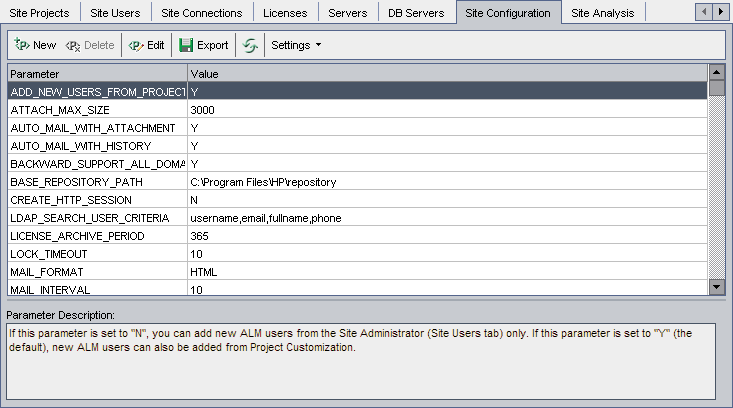
Key Site Admin Tasks
- Create domains and projects
- Configure user authentication
- Manage database connections
- Assign project administrators
Proper site administration ensures scalability and governance across multiple QA teams.
Step 5: Creating Domains and Projects
Configure ALM organizes work using domains and projects.
Domain Creation
- Logical grouping of related projects
- Often aligned with business units
Project Creation
- Assign database schema
- Define repository location
- Select project template
Projects created during setup become the workspace for test planning and execution.
Step 6: User Management and Roles
User roles control access and actions within ALM.
Common ALM Roles
- QA Tester
- Test Lead
- Project Manager
- Site Administrator
Each role has defined permissions for modules such as Requirements, Test Lab, and Defects.
Understanding role-based access is a practical skill taught in every Course for QA tester.
Step 7: Installing ALM Client Components
Some ALM features require client-side components.
Client Installation Steps
- Access ALM through browser
- Download required add-ons
- Install components with admin rights
- Restart browser
Without client components, users may face issues with test execution or attachments.
Step 8: Configuring Workflow and Customization
ALM allows customization to match organizational processes.
Workflow Customization
- Define defect lifecycle statuses
- Customize mandatory fields
- Add validation rules
Custom Fields
- Add business-specific attributes
- Configure visibility per role
These configurations align ALM with real project workflows used in enterprise QA teams.
Step 9: Integrating ALM with Other Tools
ALM often integrates with development and CI tools.
Common Integrations
- Automation tools
- CI/CD pipelines
- Version control systems
Integration enables continuous testing and traceability across development and QA.
Advanced QA testing training programs often include ALM integration scenarios.
Step 10: Validating the ALM Installation
After configuration, validation ensures system readiness.
Validation Checklist
- Login works for all roles
- Projects load correctly
- Test cases can be created
- Defects can be logged
- Reports generate successfully
Validation prevents production issues and ensures stable usage.
Common ALM Installation and Configuration Issues
Understanding common issues helps reduce downtime.
Frequent Problems
- Database connection failures
- Browser compatibility issues
- Missing client components
- Permission misconfigurations
Learning to troubleshoot these problems is essential for QA professionals managing test environments.
Best Practices for ALM Configuration
Following best practices improves performance and usability.
- Use separate environments for test and production
- Schedule regular backups
- Standardize naming conventions
- Document workflows and configurations
- Monitor server performance
These practices are often discussed in professional Course for QA tester curricula.
Why ALM Skills Matter for QA Careers
ALM knowledge demonstrates:
- Understanding of enterprise QA processes
- Experience with centralized test management
- Ability to work in regulated environments
- Readiness for lead or senior QA roles
Many employers expect hands-on ALM exposure from candidates completing QA testing training.
Final Thoughts
Installing and configuring ALM is a structured process that involves system preparation, database setup, server installation, site administration, and ongoing configuration. When properly implemented, ALM becomes a powerful platform for managing quality across the entire application lifecycle.
For QA professionals, mastering ALM installation and configuration builds strong foundational skills in enterprise testing environments. This expertise is a core component of any comprehensive Course for QA tester and remains highly relevant in modern QA testing training programs focused on real-world, job-ready capabilities.


























17 Responses
Application Lifecycle management is a software which is mainly used to manage all the activities of testing and test documents like artefacts that is test cases, Reports, projects, Graphs etc. which are into the testing. ALM is a test management tool.
Below issues are addressed using alm : test documents storing & sharing , communication on testing activities ,
security of test documents , tracking the history of test documents , report generation to track the testing.
Application Lifecycle management is a software which is mainly used to manage all the activities of testing and test documents like artefacts that is test cases, Reports, projects, Graphs etc. which are into the testing.
ALM is a test management tool. Below issues are addressed using alm:
test documents storing & sharing
communication on testing activities
security of test documents
tracking the history of test documents
report generation to track the testing
ALM has a server on which many projects can be created. Each project can be associated with user account.
Application Lifecycle management is a software which is mainly used to manage all the activities of testing and test documents like artefacts that is test cases, Reports, projects, Graphs etc. which are into the testing.
Application Life Cycle Management (ALM):
Application Lifecycle management is a software which is mainly used to manage all the activities of testing and test documents like artifacts that is test cases, Reports, projects, Graphs etc. which are into the testing.
ALM is a test management tool. Below issues are addressed using alm:
test documents storing & sharing
communication on testing activities
security of test documents
tracking the history of test documents
report generation to track the testing
ALM has a server on which many projects can be created. Each project can be associated with user account.
How to install HP ALM?
Download the link https://software.microfocus.com/signup.
Enter the details and click sign up to register.
Go to your email inbox to verify the link
Go to the login page of the link https://login.software.microfocus.com/msg/actions/showLogin
Enter the e-mail and click continue
Click next and give the password.
Dashboard appears and explore option is found and click ALM.
Click on the ALM_12.55_windows_english.zip
ALM download starts.
Installation Process starts then follow the instructions.
After the successful installation we have to configure it.
How to configure ALM?
Follow below steps and enter information at each step:
License Key: After installation use the Evaluation Key for Application Lifecycle management and click next.
How to install and configure ALM?
Database Server: Provide the server details, select the appropriate database credentials and click next. Enter the Database server details. Enter the parameters as below:
Database type:
MS-SQL(SQLAuth)
Database Connection:
-database parameters:
DB Host Name: H2KInfosys
DB port number: 1433
or
–Connection string:
note: Enter the connection string to database- Database path and name
Database administrator login:
DB admin username: Uadmin
DB admin password: Padmin
Enter Site Administration database schema.
for eg:
Selected action: Create a new schema
Schema details:
-schema name: DB123
-schema password: schpass
Security: When the security check page opens we can select default and proceed next.
Site administrator user: Enter the site administrator user-id and password.
File repository Path: Select the file path where the ALM data will be stored in the system.
Application Server: Select the port numbers which would like to install.
HP ALM Services: When the Screen of HP-ALM services appears, do not enter any data leave it blank as by default your login-credentials will be used.
Mail Server: Enter the server details to setup the mail server for the HP-ALM. It can be optional you can click none if not needed.
Installation Summary: Click next Apply configuration: Configuration summary is shown before it begins. Configuration proceeds
How to install and configure ALM?
Click Finish and start ALM server is checked and ALM server will be started and the main screen window of ALM is opened.
– ALM: Application Lifecycle management is a software which is mainly used to manage all the activities of testing and test documents like artefacts that is test cases, Reports, projects, Graphs etc. which are into the testing.
– ALM is a test management tool. Below issues are addressed using alm:
1. test documents storing & sharing
2. communication on testing activities
3. security of test documents
4. tracking the history of test documents
5. report generation to track the testing
Application Lifecycle management is a software which is mainly used to manage all the activities of testing and test documents like artefacts that is test cases, Reports, projects, Graphs etc. which are into the testing.
ALM is a test management tool. Below issues are addressed using alm:
test documents storing & sharing
communication on testing activities
security of test documents
tracking the history of test documents
report generation to track the testing
ALM has a server on which many projects can be created. Each project can be associated with user account.
Application Lifecycle management is a software which is mainly used to manage all the activities of testing and test documents like artefacts that is test cases, Reports, projects, Graphs etc. which are into the testing.
ALM is a test management tool. Below issues are addressed using alm:
test documents storing & sharing
communication on testing activities
security of test documents
tracking the history of test documents
report generation to track the testing
ALM has a server on which many projects can be created. Each project can be associated with user account.
Application Lifecycle management is a software which is mainly used to manage all the activities of testing and test documents like artefacts that is test cases, Reports, projects, Graphs etc. which are into the testing.
ALM is a test management tool. Below issues are addressed using alm:
test documents storing & sharing
communication on testing activities
security of test documents
tracking the history of test documents
report generation to track the testing
Application Life Cycle Management (ALM):
Application Lifecycle management is a software which is mainly used to manage all the activities of testing and test documents like artefacts that is test cases, Reports, projects, Graphs etc. which are into the testing.
ALM is a test management tool. Below issues are addressed using alm:
1. test documents storing & sharing
2. communication on testing activities
3. security of test documents
4. tracking the history of test documents
5. report generation to track the testing
How to install HP ALM?
1. Download the link https://software.microfocus.com/signup.
2. Enter the details and click sign up to register.
3. Go to your email inbox to verify the link
4. Go to the login page of the link https://login.software.microfocus.com/msg/actions/showLogin
5. Enter the e-mail and click continue
6. Click next and give the password.
7. Dashboard appears and explore option is found and click ALM.
8. Click on the ALM_12.55_windows_english.zip
9. ALM download starts.
10. Installation Process starts then follow the instructions.
11. After the successful installation we have to configure it.
How to configure ALM?
1. License Key: After installation use the Evaluation Key for Application Lifecycle management and click next.
Database Server
Enter Site Administration database schema.
Security
Site administrator user
File repository Path
Application Server
HP ALM Services
Mail Server
Installation Summary
Apply configuration
Finish
How to install HP ALM?
1. Download the link https://software.microfocus.com/signup.
2. Enter the details and click sign up to register.
3. Go to your email inbox to verify the link
4. Go to the login page of the link https://login.software.microfocus.com/msg/actions/showLogin
5. Enter the e-mail and click continue
6. Click next and give the password.
7. Dashboard appears and explore option is found and click ALM.
8. Click on the ALM_12.55_windows_english.zip
9. ALM download starts.
10. Installation Process starts then follow the instructions.
How to configure ALM?
1. License Key: After installation use the Evaluation Key for Application Lifecycle management and click next.
2. Database Server
3. Enter Site Administration database schema.
4. Security
5. Site administrator user
6. File repository Path
7. Application Server
8. HP ALM Services
9. Mail Server
10. Installation Summary
11. Apply configuration
12. Finish
Application Lifecycle management is a software which is mainly used to manage all the activities of testing and test documents like artefacts that is test cases, Reports, projects, Graphs etc. which are into the testing.
ALM is a test management tool. Below issues are addressed using alm:
– test documents storing & sharing.
– communication on testing activities.
– security of test documents.
– tracking the history of test documents.
– report generation to track the testing.
The following are the steps to install HP ALM:
Download the link https://software.microfocus.com/signup.
Enter the details and click sign up to register.
Go to your email inbox to verify the link
Go to the login page of the link https://login.software.microfocus.com/msg/actions/showLogin
Enter the e-mail and click continue
Click next and give the password.
Dashboard appears and explore option is found and click ALM.
8. Click on the ALM_12.55_windows_english.zip
9. ALM download starts.
10. Installation Process starts then follow the instructions.
Application Lifecycle management is a software which is mainly used to manage all the activities of testing and test documents like artefacts that is test cases, Reports, projects, Graphs etc. which are into the testing.
ALM is a test management tool. Below issues are addressed using alm:
• test documents storing & sharing
• communication on testing activities
• security of test documents
• tracking the history of test documents
• report generation to track the testing
ALM has a server on which many projects can be created. Each project can be associated with user account.
How to install HP ALM?
1. Download the link https://software.microfocus.com/signup.
2. Enter the details and click sign up to register.
3. Go to your email inbox to verify the link
4. Go to the login page of the link https://login.software.microfocus.com/msg/actions/showLogin
5. Enter the e-mail and click continue
6. Click next and give the password.
7. Dashboard appears and explore option is found and click ALM.
8. Click on the ALM_12.55_windows_english.zip
9. ALM download starts.
10. Installation Process starts then follow the instructions.
After the successful installation we have to configure it.
How to configure ALM?
Follow below steps and enter information at each step:
1. License Key: After installation use the Evaluation Key for Application Lifecycle management and click next.
1. Database Server: Provide the server details, select the appropriate database credentials and click next. Enter the Database server details. Enter the parameters as below:
Database type:
MS-SQL(SQLAuth)
Database Connection:
-database parameters:
DB Host Name: H2KInfosys
DB port number: 1433
or
–Connection string:
note: Enter the connection string to database- Database path and name
Database administrator login:
DB admin username: Uadmin
DB admin password: Padmin
2. Enter Site Administration database schema.
for eg:
Selected action: Create a new schema
Schema details:
-schema name: DB123
-schema password: schpass
4. Security: When the security check page opens we can select default and proceed next.
5. Site administrator user: Enter the site administrator user-id and password.
6. File repository Path: Select the file path where the ALM data will be stored in the system.
7. Application Server: Select the port numbers which would like to install.
8. HP ALM Services: When the Screen of HP-ALM services appears, do not enter any data leave it blank as by default your login-credentials will be used.
9. Mail Server: Enter the server details to setup the mail server for the HP-ALM. It can be optional you can click none if not needed.
10. Installation Summary: Click next.
11. Apply configuration: Configuration summary is shown before it begins. Configuration proceeds
12. Finish: Click Finish and start ALM server is checked and ALM server will be started and the main screen window of ALM is opened.
Application Life Cycle Management (ALM):
Application Lifecycle management is a software which is mainly used to manage all the activities of testing and test documents like artefacts that is test cases, Reports, projects, Graphs etc. which are into the testing.
ALM is a test management tool. Below issues are addressed using alm:
• test documents storing & sharing
• communication on testing activities
• security of test documents
• tracking the history of test documents
• report generation to track the testing
ALM has a server on which many projects can be created. Each project can be associated with user account.
Application Lifecycle management is a software which is mainly used to manage all the activities of testing and test documents like artifacts that is test cases, Reports, projects, Graphs etc. which are into the testing.
ALM is a test management tool. Below issues are addressed using ALM:
test documents storing & sharing
communication on testing activities
security of test documents
tracking the history of test documents
report generation to track the testing
ALM has a server on which many projects can be created. Each project can be associated with user account.
Application lifecycle management is a software which is mainly used to manage all the activities of testing and test documents like artefacts that is test cases, reports, projects, graph etc. which are into the testing. ALM is test management tool. Below issues are addressed using alm: test documents storing and sharing, communication on testing activities, security of test documents, tracking the history of test documents, and report generation to track the testing. ALM has a server on which many projects can be created. Each project can be associated with user account. Each project can be associated with user account. The installation off HP ALM is discussed. Also, the configuration of ALM is described.
Application Lifecycle management is a software which is mainly used to manage all the activities of testing and test documents like artefacts that is test cases, Reports, projects, Graphs etc. which are into the testing.
ALM is a test management tool. Below issues are addressed using alm:
* test documents storing & sharing
* communication on testing activities
* security of test documents
* tracking the history of test documents
* report generation to track the testing
ALM has a server on which many projects can be created. Each project can be associated with user account.
How to install HP ALM?
* Download the link https://software.microfocus.com/signup.
* Enter the details and click sign up to register.
* Go to your email inbox to verify the link
* Go to the login page of the link https://login.software.microfocus.com/msg/actions/showLogin
* Enter the e-mail and click continue
* Click next and give the password.
* Dashboard appears and explore option is found and click ALM.
* Click on the ALM_12.55_windows_english.zip
* ALM download starts.
* Installation Process starts then follow the instructions.
After the successful installation we have to configure it.
Application Life Cycle Management (ALM):
Application Lifecycle Management is software that is mainly used to manage all the activities of testing and test documents like artifacts that as test cases, Reports, projects, Graphs, etc. which are into the testing.
ALM is a test management tool. Below issues are addressed using alm:
test documents storing & sharing
communication on testing activities
security of test documents
tracking the history of test documents
report generation to track the testing
ALM has a server on which many projects can be created. Each project can be associated with a user account.
How to install HP ALM?
Download the link https://software.microfocus.com/signup.
Enter the details and click sign up to register.
Go to your email inbox to verify the link
Go to the login page of the link https://login.software.microfocus.com/msg/actions/showLogin
Enter the e-mail and click continue
Click next and give the password.
The dashboard appears and explores options found click ALM.
8. Click on the ALM_12.55_windows_english.zip
9. ALM download starts.
10. Installation Process starts then follow the instructions.
After the successful installation, we have to configure it.
How to configure ALM?
Follow the below steps and enter information at each step:
License Key: After installation uses the Evaluation Key for Application Lifecycle management and click next.
Database Server: Provide the server details, select the appropriate database credentials and click next. Enter the Database server details. Enter the parameters as below:
Database type:
MS-SQL(SQLAuth)
Database Connection:
-database parameters:
DB Host Name: H2KInfosys
DB port number: 1433
or
–Connection string:
note: Enter the connection string to the database- Database path and name
Database administrator login:
DB admin username: Uadmin
DB admin password: Padmin
Enter Site Administration database schema.
for eg:
Selected action: Create a new schema
Schema details:
-schema name: DB123
-schema password: schpass
4. Security: When the security check page opens we can select default and proceed next.
5. Site administrator user: Enter the site administrator user-id and password.
6. File repository Path: Select the file path where the ALM data will be stored in the system.
7. Application Server: Select the port numbers you would like to install.
8. HP ALM Services: When the Screen of HP-ALM services appears, do not enter any data and leave it blank as by default your login credentials will be used.
9. Mail Server: Enter the server details to set up the mail server for the HP-ALM. It can be optional you can click none if needed.
10. Installation Summary: Click next.
11. Apply configuration: The configuration summary is shown before it begins. Configuration proceeds
12. Click Finish and start ALM server is checked and the ALM server will be started and the main screen window of ALM is opened.