


Introduction: Why Co-Occurrence Matters More Than Ever
Data grows every day. Every click, message, and purchase leaves a trace. Companies want analysts who can make sense of these traces. Co-Occurrence Visualization makes this easier because it shows which items tend to appear together. For example:
- Products that customers often buy together
- Words that appear together in customer reviews
- Events that occur together in a timeline
- Patterns that repeat across customer behavior
When you learn tableau online or start a Tableau developer course, you will see that these visual patterns help teams make better decisions fast.
A 2024 Gartner survey states that 82% of organizations now prioritize relationship-based analytics because these insights drive higher engagement and more accurate predictions. This makes Co-Occurrence Visualization one of the most relevant skills to learn today.
What Is Co-Occurrence Visualization?
Co-Occurrence Visualization is a method that shows how often two or more items appear together in a dataset. Tableau shows these relationships through charts like:
- Network graphs
- Heatmaps
- Bump charts
- Word pair diagrams
- Sankey diagrams
These visuals help analysts see hidden patterns instantly. When you join Tableau training or watch Tableau demo videos, you will see real examples of these charts used in business dashboards.
Here are a few everyday examples:
✔ Retail
Shows products customers often buy together, helping stores create bundles.
✔ Healthcare
Shows symptoms that appear together, helping doctors identify early patterns.
✔ Marketing
Shows keywords users search together, helping brands build better campaigns.
✔ Social Media
Shows hashtags that appear together, helping creators understand audience trends.
All these use Co-Occurrence Visualization as their foundation.
Why Tableau Is the Best Tool for Co-Occurrence Visualization
Tableau remains a top choice because it is:
- Easy to use
- Highly visual
- Fast with large datasets
- Trusted by thousands of companies
- Widely taught in Tableau training and placement programs
LinkedIn’s 2025 Emerging Jobs Report shows that Tableau skills grew 58% year-over-year, especially for data analysts and business intelligence roles.
If you want a role in analytics, Tableau will help you work with Co-Occurrence Visualization in a clean, interactive way.
How Co-Occurrence Visualization Works in Tableau
Let’s walk through a simple, practical approach you can follow. These hands-on steps reflect what you will learn in a full Tableau tutorials.
Step 1: Prepare Your Data
Your data must include items or words that appear together. For example:
| Order ID | Product |
|---|---|
| 1001 | Bread, Butter |
| 1002 | Eggs, Milk |
This dataset helps Tableau understand co-occurring items.
Step 2: Split Your Values
Use Tableau’s split function:
Right-click column → Split
This gives you individual items like:
- Bread
- Butter
- Eggs
- Milk
Step 3: Build a Relationship Table
To create Co-Occurrence Visualization, you often need pair combinations such as:
- Bread–Butter
- Eggs–Milk
You can create these pairs using:
- Custom SQL
- Tableau Prep
- Cross-join Excel model
You will see walkthroughs of this process in Tableau demo videos during Tableau training sessions.
Step 4: Create a Matrix or Network Visual
Option 1: Heatmap
Drag:
- Item 1 → Rows
- Item 2 → Columns
- Count of Occurrence → Color
This becomes a Co-Occurrence Visualization heatmap.
Option 2: Network Graph
Use row/column pairs and a scatter plot with “Path” to create node connections.
Step 5: Add Filters to Improve Clarity
Add filters such as:
- Date
- Category
- Region
- Frequency threshold
This makes your Co-Occurrence Visualization more useful for real-world decisions.
Real-World Business Use Cases
In every Tableau developer course, you will work on real-life projects. Below are common use cases where Co-Occurrence Visualization delivers strong business value.
1. Product Recommendation Systems
Retailers like Amazon and Walmart use Co-Occurrence Visualization to identify product pairs.
Example:
“Phone Cases + Screen Protectors” appear together in 78% of orders.
Impact:
- Better product bundles
- Higher cart value
- More accurate recommendations
2. Customer Review Analysis
If a restaurant sees that words like:
- “slow service”
- “cold food”
appear together, they know where to improve.
This shows the power of Co-Occurrence Visualization in text analytics.
3. Marketing and SEO Keyword Mapping
Marketers use co-occurrence to find keyword pairs such as:
- “vegan recipes” + “low calorie”
- “travel deals” + “cheap flights”
This helps content teams write better articles and ads.
4. Fraud Detection
Banks detect suspicious patterns like:
- Login attempts + unusual location
- Large amount + unknown device
Using Co-Occurrence Visualization, fraud teams can detect threats earlier.
5. Healthcare Diagnosis Patterns
Doctors use co-occurrence of symptoms to identify:
- early-stage illnesses
- treatment responses
- risk clusters
Again, all powered by Co-Occurrence Visualization dashboards.
Advanced Co-Occurrence Visualization Techniques in Tableau
Once you learn the basics, you can build advanced visuals like:
1. Sankey Charts
Shows flow from one item to another:
Item A → Item B → Frequency
Example:
User path on website:
Home → Product Page → Add to Cart
2. Radial Network Charts
Shows relationships in a circular view.
This is a beautiful style of Co-Occurrence Visualization that many analysts use in presentations.
3. Hierarchical Co-Occurrence Maps
Shows layered connections such as:
Category → Sub-item → Co-occurring Pair
Example:
Electronics → Mobile → Case + Charger
4. Term Co-Occurrence for NLP
When analyzing text, Tableau can show:
- word pairs
- sentiment clusters
- topic connections
This is one of the most popular ways to use Co-Occurrence Visualization today.
Skills You Gain When You Learn Co-Occurrence Visualization
When you learn tableau online or through structured Tableau training, you gain skills such as:
- Pattern identification
- Data preparation
- Relationship mapping
- Dashboard creation
- Predictive insights
These skills boost your resume and help you stand out in interviews.
Why Learn Co-Occurrence Visualization Through H2KInfosys?
H2KInfosys offers:
✔ Hands-on Tableau training
✔ Real-time industry projects
✔ Tableau demo videos for revision
✔ Tableau training and placement support
✔ A complete Tableau developer course
You learn how to create dashboards, manage data, and build Co-Occurrence Visualization models used in real companies.
How to create Calculated Fields:
Follow the below steps to create the calculated fields that you will use to show which items are also ordered when the user’s item (via the parameter control) is ordered.
Step 1: Create a calculated field to identify products that the order also contains (in addition to the user selects).
Select Analysis > Create Calculated Field to open the calculation editor. Name the calculated field as Then Order Also Contains and type or paste the following:
IF [Sub-Category] <> [Order Contains] THEN [Sub-Category] END
You may need to replace <> with <> after you paste.
Step 2: Create another calculated field for identifying matching products.
Name the field as Product Matches and type or paste the following:
IF [Sub-Category] = [Order Contains] THEN 1 END
Create a Set:
Step 1: Now, create a set to determine whether an order has the item selected in the parameter control.
Step 2: Hover the cursor over the dimension Order ID in the Data pane, click on the down arrow present at the right end of the field, and select Create > Set.

Step 3: In the Create Set dialog box, type Order Has Selected Product in the Name text box.
Step 4: Go to the Condition tab, select By field, and in the drop-down lists, perform the following selections and entries to create the condition:
- In the first drop-down list, select the option Product Matches.
- In the second drop-down list, select Sum.
- In the next drop-down list, select >=.
- In the last text box, type 1.
- Click OK.
Step 5: Click, OK.
How to build the View:
Finally, build the view for displaying which items are also contained in an order with the selected item.
Step 1: Drag Then Order Also Contains to Columns.
Step 2: Drag Order ID to Rows.
In the dialog box warning, click Add all members.
Step 3: Click the Order ID field on Rows and choose Measure > Count (Distinct) to change the aggregation.
Step 4: Right-click the Null bar on the x-axis and choose Exclude.
Step 5: Drag the Order Has Selected Product set to the Filters shelf.
Step 6: Press Ctrl+W to swap the fields between Rows and Columns.
You can now use the Order Contains parameter control for selecting an item in an order. Then you can see a bar chart showing which other items are also included in orders with the selected item.

Benford’s Law:
Benford’s Law is a mathematical law stating that the leading or left-most digit in many real-life data sources is distributed in a particular manner. Specifically, number 1 occurs as the leading digit about 30% of the time, and as the numbers get larger, they occur less frequently, and with the number 9 occurring less than 5% of the time. When fraudsters are making data, they may not know to create fake data that conform to Benford’s law, and in some cases, it becomes possible to detect fake data or at least to create doubt about its veracity.
The process requires you to perform the following:
- Create calculated fields to use in the view.
- Set up the view.
How to create calculated fields to use in your view:
Step 1: In the Analysis menu, select Create Calculated Field for opening the calculation editor. Name the calculation as Leftmost Integer and type or paste the following:
LEFT(STR([Sales]),1)Step 2: Create a second calculated field and name it Benfords Law. Type or paste the following:
LOG(INT([Leftmost Integer])+1)-LOG(INT([Leftmost Integer]))How to set up the view:
Step 1: From the Data pane, drag Leftmost Integer to Columns, and then drag Orders(Count) to Rows.
Step 2: Click CNT(Orders) on Rows and select Quick Table Calculation > Percent of Total.
Your view will now show the distribution of first digits, and the size of the bars (decreasing from left to right) will suggest that the data, in this case, conform to Benford’s law.
Step 3: Drag Benfords Law from the Data pane to Detail on the Marks card. Click on Benfords Law on the Marks card and select Measure > Minimum.
Step 4: Switch from the Data pane to the Analytics pane and drag Distribution Band into the view. Drop it on cells.
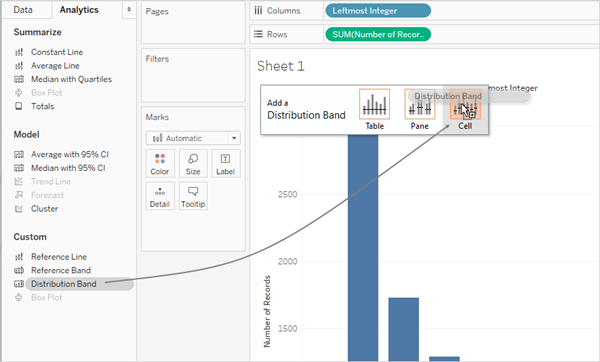
Step 5: In the Edit Reference Line, Band, or Box dialog box, perform the following:
- Click on the Value field to view an additional set of options:
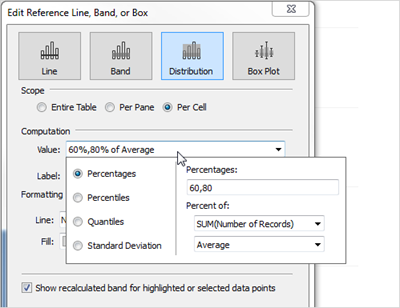
- In the Percentage area, type 80,100,120.
This will specify that you want bands spanning from 80 to 100 percent and from 100 to 120 percent. Next, you will also specify what value the percentages are referencing.
- In the Percent of field, choose MIN(Benford’s Law).
The Value field should now read at least 80%,100%,120% of Average Min. Benford’s Law.
The remaining steps will now configure the appearance of the reference bands.
- Set Label to None.
- Set Line to the thinnest available line.
- Select Fill Below.
- Fill the form and select Stoplight.
- Click on OK to exit the Edit Reference Line, Band, or Box dialog box.
Step 6: Click the toolbar button to display mark labels:

The finished view should look like this:
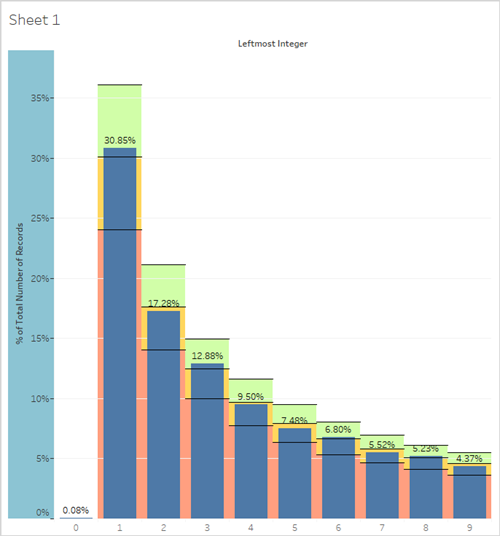
Conclusion
Co-Occurrence Visualization is one of the most powerful techniques in data analytics. If you want to build strong Tableau skills and grow your career fast, this is the right time to start.
Enroll at H2KInfosys today to learn Tableau online with hands-on projects. Join now to build real skills that lead to real opportunities.
FAQs:
What is Co-Occurrence Visualization in Tableau?
Co-Occurrence Visualization in Tableau is a data visualization technique used to show how often two or more items appear together, helping users identify relationships, patterns, and connections within data.
How do you create a Co-Occurrence Visualization in Tableau?
To create a Co-Occurrence Visualization in Tableau, you typically prepare relationship-based data, connect the relevant fields, and use charts like network diagrams, heat maps, or matrix views to display co-occurring relationships.
What type of data is suitable for Co-Occurrence Analysis in Tableau?
Co-Occurrence Analysis works well with data where items frequently appear together, such as customer purchase patterns, search keywords, social media interactions, survey responses, and text analysis data.
What is the difference between a Co-Occurrence Matrix and a Network Visualization in Tableau?
A Co-Occurrence Matrix displays relationships in a table-like format using values or colors, while a Network Visualization represents connections using nodes and links for easier pattern recognition.
Why is Co-Occurrence Visualization useful in data analysis?
It helps analysts discover hidden relationships, identify trends, understand customer behavior, and make data-driven decisions by highlighting connections between different data points.