


Introduction: Why Date and Time Customization Matters More Than You Think
Modern analytics depends on how well you understand time. Every business question eventually connects to when something happened. Sales trends depend on months. Healthcare outcomes depend on timestamps. Customer behavior depends on seasons and hours. When analysts work with Multidimensional Data, date and time fields often decide whether insights feel clear or confusing.
In tools like Tableau, raw date and time values rarely arrive in a perfect format. Data often includes timestamps, fiscal calendars, time zones, or inconsistent formats across systems. Learning how to customize date and time fields is a core skill for anyone pursuing a Tableau developer course or enrolling in a Tableau software course aimed at real-world analytics.
This guide explains how to customize date and time fields in Tableau step by step. You will learn practical techniques, real business examples, and hands-on methods used by professionals working with Multidimensional Data in production environments.
What Are Date and Time Fields in Multidimensional Data?
Date and time fields represent temporal dimensions that allow users to analyze facts across multiple perspectives such as year, quarter, month, day, or hour. In Multidimensional Data, these fields interact with other dimensions like region, product, or customer segment.
For example:
- A retail cube may analyze sales by product, store, and order date.
- A healthcare dataset may track patient events by department, diagnosis, and timestamp.
- A finance model may evaluate revenue by account, geography, and fiscal period.
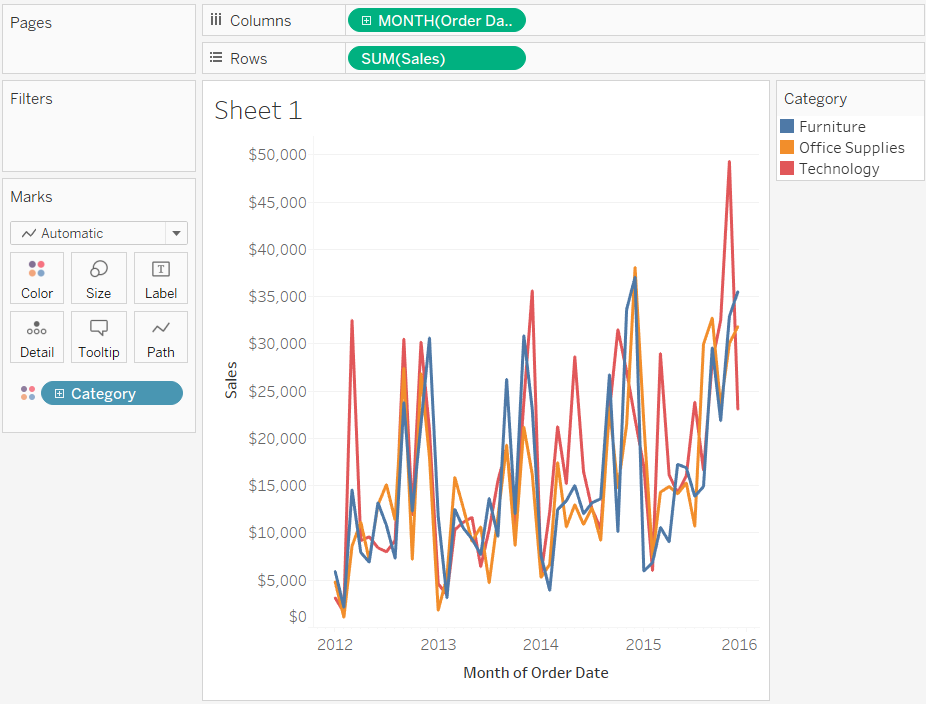
Each scenario depends on accurate date handling to support correct aggregation and filtering.
Why Tableau Treats Dates as Dimensions and Measures
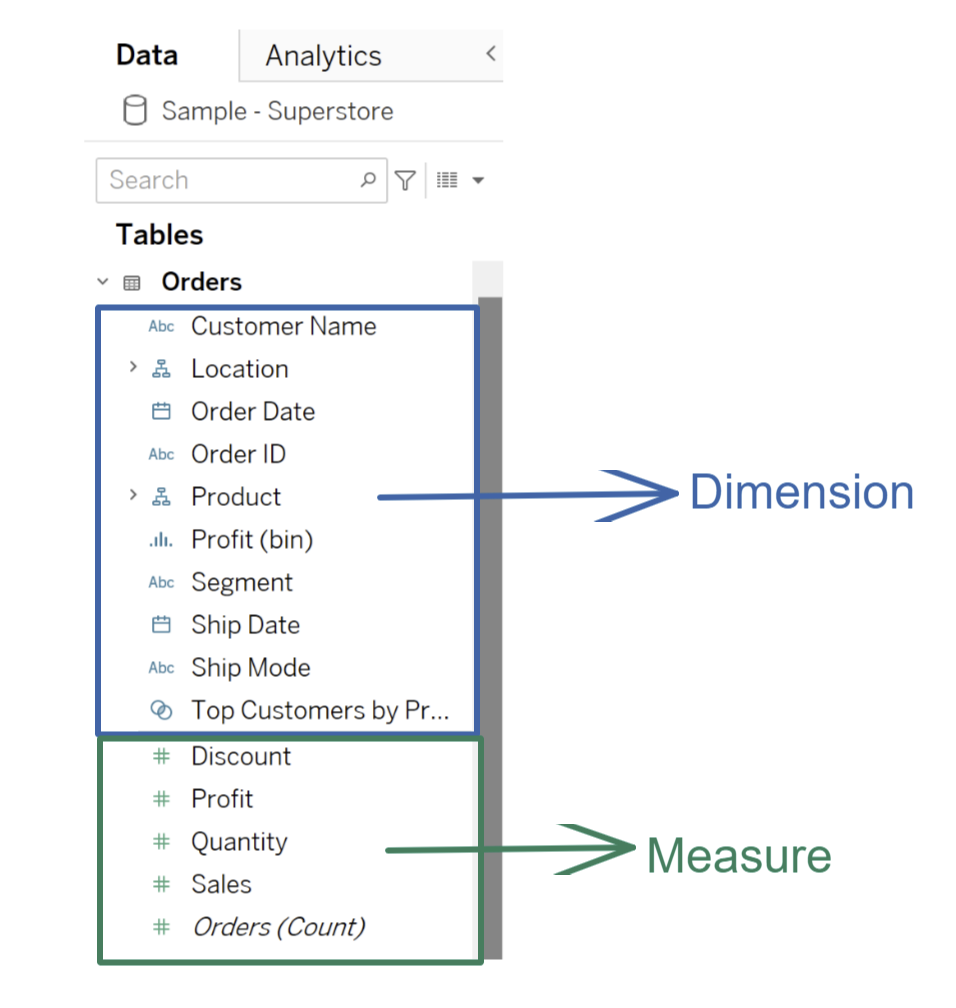
Tableau uses a flexible data model. Date fields can behave as:
- Discrete dimensions (blue pills) such as Year or Month
- Continuous measures (green pills) such as timelines or trends
This flexibility helps analysts explore Multidimensional Data across different levels of detail. However, it also requires clear understanding to avoid misinterpretation.
Key Tableau Date Types
- Date
- Date & Time
- String-based date fields
Choosing the correct type ensures consistent aggregation and accurate visual results.
Common Challenges with Date and Time Fields in Real Projects
Many learners face problems when they move from Tableau e learning to real datasets. Common issues include:
- Mixed time zones in global datasets
- Fiscal calendars that do not match calendar years
- Timestamps stored as text
- Inconsistent date formats from multiple sources
Each issue becomes more complex when datasets grow into Multidimensional Data models with many related tables.
Step 1: Understanding Date Hierarchies in Tableau
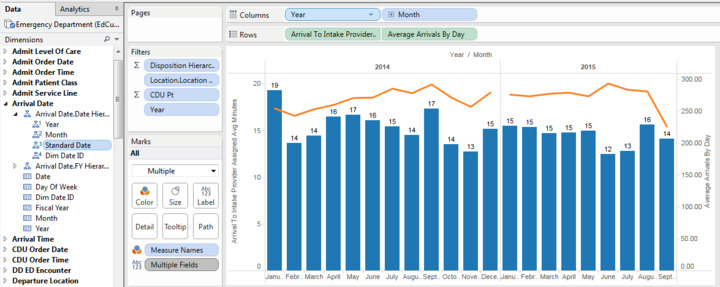
Tableau automatically creates a date hierarchy when it detects a valid date field. The hierarchy usually includes:
- Year
- Quarter
- Month
- Day
This hierarchy allows quick drill-down and roll-up analysis, which is essential when working with Multidimensional Data.
Practical Example
A sales manager may start by viewing yearly revenue, then drill down to quarters, months, and specific days to identify performance patterns.
Step 2: Customizing Date Levels for Business Use
Default hierarchies do not always match business needs. Tableau allows you to customize them.
How to Create Custom Date Hierarchies
- Right-click the date field in the Data pane
- Select “Create” → “Custom Date”
- Choose the required date part (Month/Year, Quarter/Year, etc.)
This approach helps analysts align Tableau dashboards with reporting standards used in Multidimensional Data environments.
Step 3: Working with Continuous vs Discrete Dates
Choosing between continuous and discrete dates changes how Tableau displays trends.
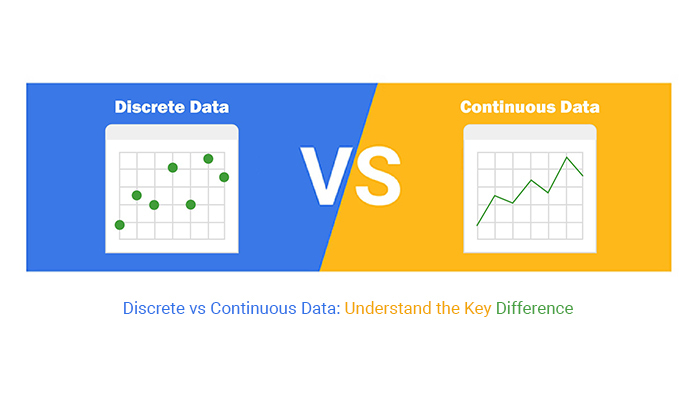
- Discrete dates show separated headers
- Continuous dates show smooth timelines
In Multidimensional Data, continuous dates work well for trend analysis, while discrete dates suit comparisons across categories.
Real-World Use Case
Marketing teams use continuous dates to track campaign performance over time. Finance teams use discrete dates to compare quarterly results.
Step 4: Creating Calculated Date Fields
Calculated fields allow deeper control over time logic.
Example: Fiscal Year Calculation
IF MONTH([Order Date]) >= 4 THEN
    YEAR([Order Date]) + 1
ELSE
    YEAR([Order Date])
END
This calculation supports fiscal reporting in organizations where fiscal years start in April. Such customization is common in Multidimensional Data used by global enterprises.
Step 5: Handling Date Strings and Parsing Errors
Many datasets store dates as text. Tableau may not recognize them automatically.
How to Fix Date Strings
- Use
DATEPARSE()to convert text into dates - Match the format exactly with the source data
This step is critical when cleaning Multidimensional Data before analysis.
Step 6: Managing Date Granularity in Dashboards
Granularity defines how detailed your analysis is.
Common granularities include:
- Daily trends
- Weekly summaries
- Monthly roll-ups
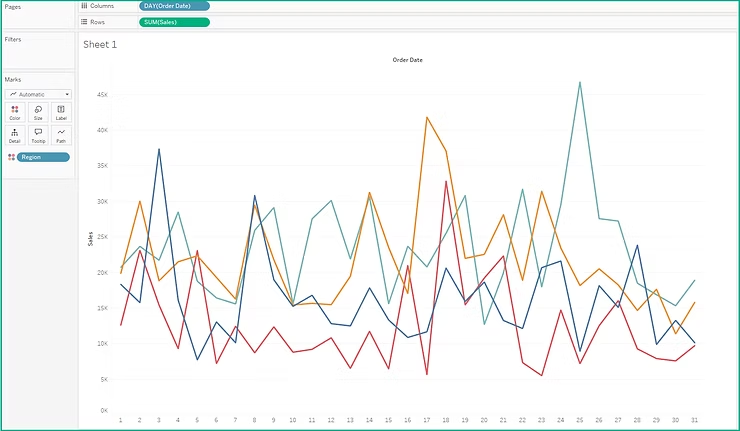
In Multidimensional Data, mismatched granularity can distort results. Always align granularity with the business question.
Step 7: Using Date Filters Correctly
Date filters can limit data by range or relative periods.
Types of Date Filters
- Range of dates
- Relative dates (last 30 days)
- Discrete date parts
Proper filtering improves dashboard performance and clarity when dealing with Multidimensional Data.
Step 8: Time Zone Adjustments in Global Data
Global datasets often include timestamps from multiple regions.
Best Practices
- Standardize timestamps at the data source
- Convert times using calculated fields
- Clearly label time zones in dashboards
This step prevents confusion in Multidimensional Data used across regions.
Step 9: Combining Date Fields Across Multiple Tables
In blended or joined data sources, date fields may not align.
Tips:
- Use consistent date formats
- Verify join conditions
- Test aggregation results
These practices ensure accuracy when analyzing Multidimensional Data across systems.
Step 10: Performance Optimization with Date Fields
Large datasets slow down when date filters are poorly designed.
Optimization tips:
- Use context filters
- Limit date ranges
- Pre-aggregate data when possible
These methods help Tableau handle Multidimensional Data efficiently at scale.
Industry Evidence: Why These Skills Matter
According to industry analytics reports, over 70 percent of business dashboards rely on time-based analysis. Organizations that standardize date handling reduce reporting errors and improve decision speed. Tableau professionals with strong date modeling skills are in high demand across finance, healthcare, retail, and technology sectors.
This is why structured learning through a Tableau developer course or Tableau training USA programs focuses heavily on time intelligence.
How This Skill Fits into Tableau Training and Placement Programs
Hands-on Tableau tutorials often emphasize date customization because employers expect job-ready skills. Tableau training and placement programs include:
- Real business datasets
- Fiscal and calendar reporting scenarios
- Dashboard performance optimization
- Interview-focused problem solving
Learners who master these skills transition faster into analyst and developer roles.
Key Takeaways
- Date and time fields drive meaningful insights in analytics
- Tableau offers flexible tools to customize date behavior
- Proper date handling improves accuracy, clarity, and performance
- These skills are essential for professional Tableau development
Conclusion
Mastering date and time customization prepares you for real-world analytics challenges and career growth.
Enroll in H2KInfosys Tableau training programs today to gain hands-on experience, job-ready skills, and expert guidance.