


Modern web applications frequently use mouse gestures that go beyond a standard left click. A file manager may open a folder only after a double-click, a data grid may enter edit mode when a cell is double-clicked, and a design application may display an action menu after a right-click. The H2K Infosys Selenium Course helps learners understand how to automate these advanced mouse interactions using Selenium Webdriver Actions class, enabling them to test real-world web application workflows effectively.
To automate these workflows accurately, Selenium Webdriver provides the Actions class. It supports advanced user interactions involving the mouse, keyboard, pointer devices, and scroll wheel. For mouse automation, Selenium offers convenient methods such as doubleClick() and contextClick().
The Java Actions API follows a builder-style approach. Testers can create one or more interactions and execute the complete action sequence by calling perform().
This tutorial explains how to perform double-click and right-click operations in Selenium WebDriver using Java. It also covers explicit waits, validation techniques, reusable utility methods, common exceptions, and recommended test-automation practices.
Why Use the Selenium Webdriver Actions Class?
The normal WebElement method shown below performs a single left click:
element.click();This method is suitable for buttons, links, checkboxes, radio buttons, and similar controls. However, it cannot represent advanced mouse gestures such as double-clicking, right-clicking, clicking and holding, hovering, or dragging and dropping.
For these operations, Selenium provides the Actions class:
Actions actions = new Actions(driver);After creating the object, you can define and execute an advanced mouse gesture:
actions.doubleClick(element).perform();
actions.contextClick(element).perform();
Selenium provides overloaded versions of both methods. The no-argument doubleClick() method performs the action at the current pointer location, while doubleClick(element) moves the pointer to the middle of the supplied element before double-clicking.
The same distinction applies to contextClick() and contextClick(element). In most test cases, passing the target element explicitly is safer because the test does not depend on the pointer’s previous location.
Basic Selenium WebDriver Setup
The following examples use Java, Selenium WebDriver, Google Chrome, and explicit waits.
import java.time.Duration;

import org.openqa.selenium.By;
import org.openqa.selenium.WebDriver;
import org.openqa.selenium.WebElement;
import org.openqa.selenium.chrome.ChromeDriver;
import org.openqa.selenium.interactions.Actions;
import org.openqa.selenium.support.ui.ExpectedConditions;
import org.openqa.selenium.support.ui.WebDriverWait;

public class MouseActionsDemo {

    public static void main(String[] args) {
        WebDriver driver = new ChromeDriver();

        try {
            driver.manage().window().maximize();
            driver.get("https://example.com");

            WebDriverWait wait =
                    new WebDriverWait(driver, Duration.ofSeconds(10));

            // Mouse interaction code goes here.

        } finally {
            driver.quit();
        }
    }
}
The browser is closed inside a finally block. This ensures that the Selenium Webdriver session is cleaned up even when an interaction or assertion fails.
Replace the example URL and locators with the values used by the application under test.
How to Double-Click an Element in Selenium Webdriver
A double-click consists of two rapid left-button clicks at the same location. Web applications commonly use this gesture to:
- Open files or folders
- Activate inline editing
- Select words or text
- Expand tree items
- Open record details
- Zoom into maps or images
- Change the state of a canvas object
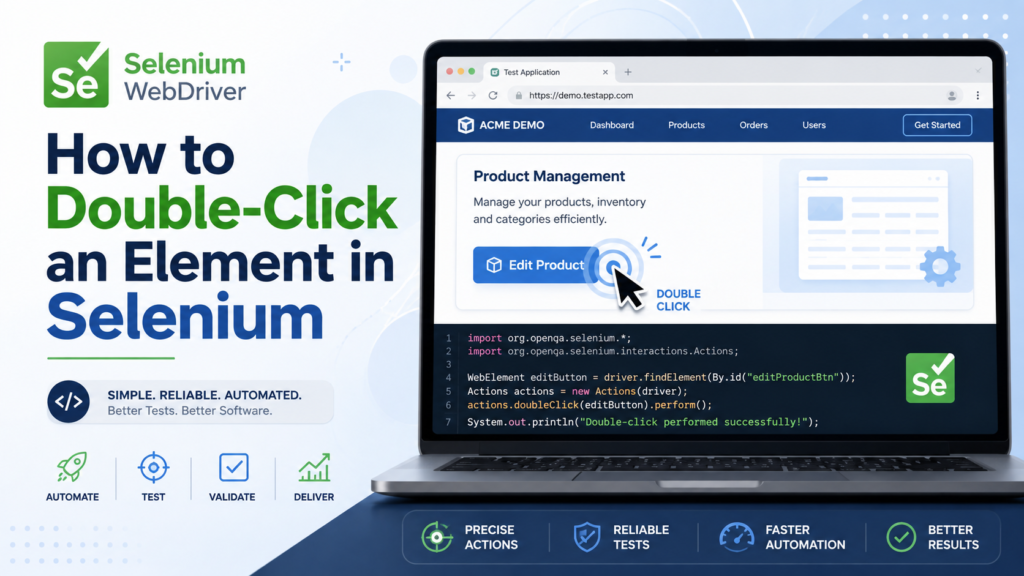
The basic Selenium syntax is:
WebElement target =
        driver.findElement(By.id("double-click-target"));

Actions actions = new Actions(driver);
actions.doubleClick(target).perform();
The doubleClick(target) method defines the gesture, while perform() executes it in the browser. Selenium’s official mouse-action documentation uses the same action-building pattern.
Although this example is valid, a dependable automated test should wait until the element is ready before interacting with it.
WebDriverWait wait =
        new WebDriverWait(driver, Duration.ofSeconds(10));

WebElement target = wait.until(
        ExpectedConditions.elementToBeClickable(
                By.id("double-click-target")
        )
);

new Actions(driver)
        .doubleClick(target)
        .perform();
Using elementToBeClickable() helps ensure that the element is visible and enabled before Selenium sends the double-click action.
Validating the Result of a Double-Click
Executing an action without validating its result produces a weak test. The test should confirm an observable change in the application.
Depending on the feature, the expected outcome may include:
- A dialog becoming visible
- A folder’s contents being displayed
- A table cell changing into an input field
- A CSS class being added
- A new page loading
- A status message appearing
- A record being selected
For example:
WebElement target = wait.until(
        ExpectedConditions.elementToBeClickable(
                By.id("double-click-target")
        )
);

new Actions(driver)
        .doubleClick(target)
        .perform();

WebElement result = wait.until(
        ExpectedConditions.visibilityOfElementLocated(
                By.id("double-click-result")
        )
);

if (!result.getText().contains("Double-click successful")) {
    throw new AssertionError(
            "Expected double-click result was not displayed."
    );
}
The assertion confirms that the application processed the gesture successfully.
Avoid validating only that the original element still exists. Its presence in the DOM does not prove that the double-click event was accepted.
Double-Clicking a Data Grid Cell
Many business applications use double-clicking to activate inline editing.
By cellLocator =
        By.cssSelector("[data-row='12'] [data-column='price']");

By editorLocator =
        By.cssSelector("input[data-editor='price']");

WebElement cell = wait.until(
        ExpectedConditions.elementToBeClickable(cellLocator)
);

new Actions(driver)
        .doubleClick(cell)
        .perform();

WebElement editor = wait.until(
        ExpectedConditions.visibilityOfElementLocated(editorLocator)
);

if (!editor.isEnabled()) {
    throw new AssertionError(
            "Price editor did not become enabled."
    );
}
This test verifies the business outcome edit mode becoming active instead of merely executing the mouse gesture.
How to Right-Click an Element in Selenium Webdriver
A right-click is also known as a context click. Selenium provides the contextClick() method for this interaction.
The official Selenium Webdriver documentation describes a context click as moving the pointer to the center of the element and pressing and releasing the right mouse button.
The basic syntax is:
WebElement target =
        driver.findElement(By.id("right-click-target"));

new Actions(driver)
        .contextClick(target)
        .perform();
A more reliable implementation uses an explicit wait:
By targetLocator = By.id("document-row");
By menuLocator = By.cssSelector(".context-menu");

WebElement target = wait.until(
        ExpectedConditions.elementToBeClickable(targetLocator)
);

new Actions(driver)
        .contextClick(target)
        .perform();

WebElement contextMenu = wait.until(
        ExpectedConditions.visibilityOfElementLocated(menuLocator)
);

if (!contextMenu.isDisplayed()) {
    throw new AssertionError(
            "Context menu was not displayed."
    );
}
This approach works best when the website implements its own HTML-based context menu.
Selenium can send a right-click gesture, but the browser’s native context menu is outside the webpage DOM. Therefore, tests should normally interact with application-rendered context-menu items rather than attempting to control operating-system or browser-interface menus.
Selecting an Option from a Custom Context Menu
After opening a custom context menu, locate the required menu item and click it like a normal WebElement.
By rowLocator =
        By.cssSelector("[data-document-id='481']");

By deleteOptionLocator =
        By.cssSelector(
                ".context-menu [data-action='delete']"
        );

WebElement row = wait.until(
        ExpectedConditions.elementToBeClickable(rowLocator)
);

new Actions(driver)
        .contextClick(row)
        .perform();

WebElement deleteOption = wait.until(
        ExpectedConditions.elementToBeClickable(
                deleteOptionLocator
        )
);

deleteOption.click();

wait.until(
        ExpectedConditions.invisibilityOfElementLocated(
                rowLocator
        )
);
This test validates the complete user journey:
- Locate the required document.
- Right-click the document.
- Wait for the custom menu.
- Select the Delete option.
- Confirm that the document disappears.
Testing the complete workflow is more valuable than checking only whether the context menu appeared.
Combining Mouse Movement and Right-Click
Some interfaces display controls only after the pointer moves over an element. In such cases, multiple actions can be composed before calling perform().
WebElement target = wait.until(
        ExpectedConditions.visibilityOfElementLocated(
                By.cssSelector(".canvas-object")
        )
);

new Actions(driver)
        .moveToElement(target)
        .pause(Duration.ofMillis(200))
        .contextClick()
        .perform();
In this example, moveToElement(target) positions the pointer first. The no-argument contextClick() then performs the right-click at the current location.
The pause may help when an application requires a short hover period before activating an element. However, fixed pauses should not be used as the primary synchronization strategy. Explicit waits that observe actual page conditions are generally more reliable than arbitrary delays.
Creating Reusable Mouse-Action Methods
When double-click and right-click operations appear in several tests, move the repeated interaction logic into a reusable helper class.
public final class MouseActions {

    private final WebDriver driver;
    private final WebDriverWait wait;

    public MouseActions(
            WebDriver driver,
            Duration timeout
    ) {
        this.driver = driver;
        this.wait = new WebDriverWait(driver, timeout);
    }

    public void doubleClick(By locator) {
        WebElement element = wait.until(
                ExpectedConditions.elementToBeClickable(
                        locator
                )
        );

        new Actions(driver)
                .doubleClick(element)
                .perform();
    }

    public void rightClick(By locator) {
        WebElement element = wait.until(
                ExpectedConditions.elementToBeClickable(
                        locator
                )
        );

        new Actions(driver)
                .contextClick(element)
                .perform();
    }
}
The helper can be used as follows:
MouseActions mouse = new MouseActions(
        driver,
        Duration.ofSeconds(10)
);

mouse.doubleClick(By.id("folder-2026"));
mouse.rightClick(By.id("report-row"));
A reusable helper reduces duplication and improves readability. However, it should contain only the interaction mechanics. Assertions related to specific business features should remain in the test class or page object.
Common Problems and Their Solutions Selenium Webdriver
1. ElementClickInterceptedException
This exception usually means that another element is covering the target. Common causes include:
- Loading overlays
- Cookie banners
- Pop-ups
- Sticky headers
- Animations
- Tooltips
Wait for the blocking element to disappear before executing the action.
wait.until(
        ExpectedConditions.invisibilityOfElementLocated(
                By.cssSelector(".loading-overlay")
        )
);
Do not immediately replace the interaction with JavaScript clicking. JavaScript can bypass normal user-input behavior and may hide an actual usability defect.
2. StaleElementReferenceException
Modern applications frequently rerender components. An Selenium Webdriver element located before the rerender may no longer refer to the current DOM node.
Locate the element after the page has stabilized, or wait for the old element to become stale before finding its replacement.
3. Double-Click Produces No Result
Confirm that the correct element receives the application’s double-click event. The actual target may be:
- A child element
- A transparent overlay
- A canvas coordinate
- An element inside an iframe
- A component inside a shadow DOM
When the element is inside an iframe, switch to the frame before locating it.
wait.until(
        ExpectedConditions.frameToBeAvailableAndSwitchToIt(
                By.id("editor-frame")
        )
);
4. Right-Click Menu Does Not Appear
Verify that the application Selenium Webdriver provides a custom context menu and that the chosen element supports it. Some applications enable the menu only for particular rows, files, canvas regions, or permission levels.
Also confirm that the element is visible, enabled, and not covered by another component.
5. Tests Fail Only in CI
Tests may behave differently in continuous-integration environments because of:
- Different viewport dimensions
- Slower rendering
- Browser-version differences
- Headless browser behavior
- CSS animations
- Resource constraints
Use deterministic window dimensions, explicit waits, stable locators, and screenshots on failure. Avoid depending on Thread.sleep(), which delays execution without proving that the interface is ready.
Best Practices for Selenium Webdriver Mouse Interactions
Use doubleClick(element) and contextClick(element) when the target is known. This makes the test more deterministic than depending on the current mouse position.
Prefer stable locators such as:
- Unique IDs
- Dedicated
data-*attributes - Accessible names
- Reliable CSS selectors
Avoid fragile Selenium Webdriver XPath expressions based on element position or visual layout.
Always wait for the element Selenium Webdriver s usable state before interacting with it. After the gesture, validate a meaningful application outcome rather than merely confirming that no exception occurred.
Keep each automated test focused on one business behavior. In a page-object design, expose intent-based methods such as:
documentPage.openFolder("Reports");
documentPage.deleteUsingContextMenu("Annual Report");
These methods communicate the user’s objective more clearly than exposing low-level action sequences throughout the test suite.
Finally, automate advanced mouse gestures only when they represent actual product behavior. When the application also provides an accessible keyboard command or visible button, test that alternative as well. It can improve test coverage while supporting users who do not operate a mouse.
Frequently Asked Questions
How do you double-click in Selenium?
Use Actions.doubleClick(element).perform().
How do you right-click in Selenium?
Use Actions.contextClick(element).perform().
Why is the Selenium Webdriver Actions class used?
It handles advanced mouse and keyboard interactions.
Why might double-click fail?
The element may be hidden, blocked, stale, or inside an iframe.
Can Selenium handle the browser’s right-click menu?
Selenium can handle custom web context menus, but not native browser menus reliably.
Conclusion
Double-click and right-click automation in Selenium WebDriver is straightforward with the Java Actions class.
Use the following command for a double-click:
new Actions(driver)
        .doubleClick(target)
        .perform();
Use the following command for a right-click:
new Actions(driver)
        .contextClick(target)
        .perform();
The mouse interaction itself is only one part of a reliable automated test. Proper synchronization, stable element locators, correct iframe or window context, clean test data, and outcome-based assertions are equally important.
By combining Selenium Webdriver Actions API with explicit waits, reusable helper methods, page objects, and meaningful validations, testing teams can create mouse-interaction tests that remain readable, maintainable, and dependable across local development and CI environments. Enrolling in Selenium Online Training can help learners build these practical automation skills and apply industry-standard testing techniques to real-world projects.