

Introduction
Data-driven decisions shape how modern businesses grow, compete, and innovate. At the center of this shift stands Tableau, a powerful visual analytics platform that helps professionals transform raw data into clear insights. One of the most common questions for learners and organizations is Tableau desktop Vs. Tableau Server. Understanding this comparison helps teams choose the right tool for building, sharing, and managing data visualizations.
In this in-depth guide, you will explore Tableau desktop Vs. Tableau Server through practical examples, industry use cases, and hands-on learning steps. You will also learn how tableau training usa, tableau training and placement, a Tableau software course, and a Tableau developer course can prepare you for real roles in data analytics and business intelligence. Whether you want to learn tableau online or improve your skills with advanced tableau tutorials, this guide gives you a complete learning path.
What Is Tableau Desktop?
Tableau Desktop is the core authoring tool in the Tableau platform. Analysts, developers, and business users use it to connect to data sources, clean and prepare data, and create interactive dashboards and reports.
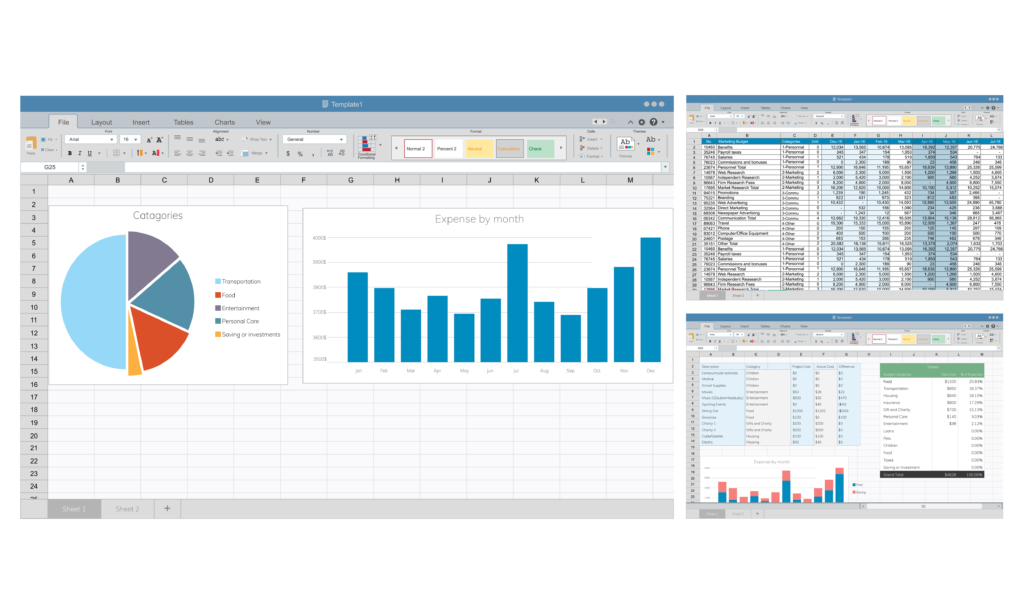
Key Features of Tableau Desktop
- Connects to multiple data sources such as Excel, CSV, SQL databases, cloud platforms, and APIs.
- Provides drag-and-drop tools for building charts, graphs, and dashboards.
- Supports calculated fields, parameters, and data blending.
- Allows local saving of workbooks and publishing to Tableau Server or Tableau Cloud.
Real-World Example
A retail analyst uses Tableau Desktop to connect to a sales database. The analyst creates a dashboard that shows daily revenue, product performance, and regional trends. After testing the dashboard locally, the analyst publishes it for managers to view.
This example shows how Tableau Desktop supports data creation and design. In the discussion of Tableau desktop Vs. Tableau Server, Tableau Desktop focuses on building and preparing content.
What Is Tableau Server?
Tableau Server is a web-based platform that hosts and manages dashboards and reports created in Tableau Desktop. It allows users across an organization to access, view, and interact with data through a browser.
Key Features of Tableau Server
- Centralized hosting of dashboards and data sources.
- User and group management for access control.
- Scheduling and automation for data refreshes.
- Monitoring tools for usage and performance.
Real-World Example
A healthcare organization publishes patient outcome dashboards to Tableau Server. Doctors and administrators log in through a browser to view trends, filter data, and download reports. The IT team controls access to sensitive information.
In the context of Tableau desktop Vs. Tableau Server, Tableau Server focuses on sharing, collaboration, and governance.
Tableau Desktop Vs. Tableau Server: Core Differences
Understanding Tableau desktop Vs. Tableau Server requires a clear view of how each tool fits into the analytics workflow.
| Feature | Tableau Desktop | Tableau Server |
|---|---|---|
| Purpose | Create and design dashboards | Share and manage dashboards |
| Access | Installed on a local machine | Accessed through a web browser |
| Users | Analysts and developers | Business users and stakeholders |
| Data Refresh | Manual or scheduled when published | Automated and scheduled |
| Security | File-level security | Role-based access control |
This table highlights the main functional difference in Tableau desktop Vs. Tableau Server. One creates content, while the other delivers content.
How the Workflow Connects Both Tools
The typical analytics workflow uses both tools together. Understanding this flow helps learners and teams use Tableau desktop Vs. Tableau Server in a practical way.
Step-by-Step Workflow
- Connect to a data source in Tableau Desktop.
- Clean and prepare data using filters and calculated fields.
- Build charts and dashboards.
- Test and validate insights locally.
- Publish the workbook to Tableau Server.
- Share access with users and groups.
- Schedule data refreshes on the server.
This process shows how Tableau Desktop and Tableau Server work as a complete system rather than separate products.
Performance and Scalability
When comparing Tableau desktop Vs. Tableau Server, performance and scalability play a major role in enterprise use.
Tableau Desktop Performance
- Performance depends on local hardware.
- Best suited for individual analysis and development.
- Handles large datasets based on system memory and processing power.
Tableau Server Performance
- Runs on centralized servers.
- Supports multiple users at the same time.
- Scales with additional server nodes and resources.
Industry Insight
According to industry research on business intelligence platforms, organizations that use centralized analytics systems report higher adoption rates among business teams. This supports the role of Tableau Server in making insights available across departments.
Security and Governance
Security is a critical part of the Tableau desktop Vs. Tableau Server comparison.
Security in Tableau Desktop
- Data access depends on local machine permissions.
- Files can be shared manually.
- Limited centralized control.
Security in Tableau Server
- Role-based access for users and groups.
- Project-level permissions.
- Secure authentication methods.
- Audit logs and usage tracking.
For regulated industries such as finance and healthcare, Tableau Server provides the governance needed to meet compliance standards.
Use Cases by Role
Business Analysts
Business analysts use Tableau Desktop to explore data, test ideas, and build dashboards. They rely on Tableau Server to share results with managers.
Data Engineers
Data engineers publish clean data sources to Tableau Server. This allows analysts to build reports without worrying about data quality.
Executives
Executives access Tableau Server to view dashboards in real time. They use filters and alerts to track performance.
This role-based view adds practical meaning to Tableau desktop Vs. Tableau Server in daily operations.
Licensing and Cost Considerations
Understanding pricing helps organizations plan their analytics strategy.
Tableau Desktop Licensing
- Requires a Creator license.
- Designed for content creators.
Tableau Server Licensing
- Includes Creator, Explorer, and Viewer roles.
- Costs depend on the number of users and server setup.
A Tableau software course often explains these models so learners can advise employers on smart investments.
Career Impact of Learning Both Tools
Learning Tableau desktop Vs. Tableau Server improves career opportunities for data professionals. Employers look for candidates who understand both development and deployment.
Job Roles
- Tableau Developer
- Business Intelligence Analyst
- Data Analyst
- Analytics Consultant
Industry Demand
Job portals show steady growth in roles that require Tableau skills. Many employers list server management and dashboard publishing as required abilities. This makes a Tableau developer course valuable for long-term career growth.
Learning Path for Beginners
If you want to learn tableau online, follow this structured path.
Step 1: Learn the Basics
- Data types and connections
- Charts and dashboards
- Filters and parameters
Step 2: Practice with Tableau Desktop
- Build sample projects
- Create calculated fields
- Design dashboards
Step 3: Publish to Tableau Server
- Set permissions
- Schedule refreshes
- Monitor usage
Step 4: Advance with Tableau Tutorials
- Performance tuning
- Security setup
- Data governance
This step-by-step plan helps learners master Tableau desktop Vs. Tableau Server through hands-on practice.
Hands-On Example: Sales Dashboard Project
Objective
Create and share a sales performance dashboard.
Tools
- Tableau Desktop
- Tableau Server
Steps
- Connect to a sales dataset in Tableau Desktop.
- Create charts for revenue, region, and product.
- Build a dashboard layout.
- Publish the dashboard to Tableau Server.
- Set user permissions.
- Share the dashboard link with stakeholders.
This project shows how both tools work together in a real business scenario.
Common Challenges and Solutions
Data Refresh Issues
Solution: Use scheduled refreshes on Tableau Server.
Slow Performance
Solution: Optimize extracts and reduce dashboard complexity.
Access Problems
Solution: Review role-based permissions on the server.
These solutions add practical value to the Tableau desktop Vs. Tableau Server discussion.
Industry Case Study
A logistics company used Tableau Desktop to create route optimization dashboards. After publishing to Tableau Server, managers across regions accessed the data in real time. The company reported faster decision cycles and better delivery performance. This case highlights how Tableau desktop Vs. Tableau Server supports both analysis and collaboration.
SEO and Long-Tail Learning Benefits
Professionals searching for tableau training usa and tableau training and placement often want job-ready skills. A structured Tableau software course that covers both tools helps learners meet employer expectations. Long-tail searches such as “how to publish dashboards on Tableau Server” or “difference between Tableau Desktop and Tableau Server for beginners” show strong interest in practical learning.
Advanced Features Comparison
Tableau Desktop
- Advanced calculations
- Custom SQL
- Data blending
Tableau Server
- Usage analytics
- Content management
- Automation tools
These features define advanced use in Tableau desktop Vs. Tableau Server.
Integration with Other Systems
Both tools integrate with cloud platforms, data warehouses, and business systems. Tableau Desktop connects to sources, while Tableau Server manages enterprise access. This integration supports modern data ecosystems.
Best Practices for Teams
- Use Tableau Desktop for development.
- Use Tableau Server for distribution.
- Maintain clear naming standards.
- Review permissions regularly.
These practices ensure smooth collaboration.
Future Trends in Tableau Usage
The growth of cloud analytics and remote work increases demand for server-based platforms. Professionals who understand Tableau desktop Vs. Tableau Server will stay relevant as organizations expand their data strategies.
Summary of Key Differences
- Tableau Desktop builds content.
- Tableau Server shares content.
- Desktop supports individual work.
- Server supports team access.
These points simplify the comparison.
Key Takeaways
- Tableau desktop Vs. Tableau Server is about creation versus distribution.
- Learning both tools improves career options.
- Hands-on projects build real skills.
- Structured training supports job readiness.
Conclusion
Build strong analytics skills with hands-on learning in Tableau Desktop and Tableau Server through H2KInfosys training programs.
Enroll today to gain practical experience and advance your career with expert guidance and real-world projects.